The Command Line and Linux
Most AI compute lives on a Linux box you reach over SSH. There's no Finder, no Explorer, no GUI, just a prompt. Get fast here or spend your rented GPU hours googling how to unzip a file.
Learning Objectives
- Navigate the Linux file system, manage permissions with `chmod`/`chown`, and install packages with `apt` to get a fresh GPU box ready for work
- Use piping, redirects, and `grep`/`awk` to filter and process training logs from the command line
- Create persistent tmux sessions with multiple panes for concurrent training and GPU monitoring with `htop`, `nvtop`, and `nvidia-smi`
- Transfer files and connect to remote GPU boxes with SSH, `scp`, and `rsync`, and recognize the macOS/Windows quirks that trip people up on Linux
The Problem
You develop on macOS or Windows. The moment you SSH into a cloud GPU box, whether that's Lambda, RunPod, Vast.ai, or an EC2 instance, you land in Ubuntu, and the terminal is your only interface. No Finder, no Explorer, no GUI.
You'll also spend more time in that terminal than in any editor. Training runs, GPU monitoring, log tailing, remote sessions, environment management: every AI workflow touches the shell. If you can't navigate the file system, install packages, manage processes, and pipe commands together from the command line, you're stuck paying for idle GPU hours while googling "how to unzip a file on Linux."
This is a survival guide, not a history of Unix or a Bash scripting deep-dive. It covers exactly the terminal and Linux skills that show up constantly in AI work. Nothing more.
The Concept
Everything below is stuff you'll touch on basically every remote box you ever SSH into. Skim it once, then come back to it as reference. This section is denser than most.
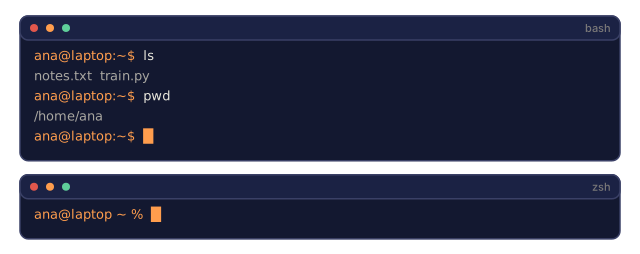
Start from zero: a terminal is just a program that reads the text commands you type and runs them. When you open one, it shows a prompt, usually ending in $ or %, which means "waiting for you to type something." The prompt isn't something you type yourself; it's the shell announcing it's ready. You type a command, like ls, then press Enter to run it, and whatever the command produces prints below. That's the entire loop: type, Enter, read the result, repeat.
The Shell You're In
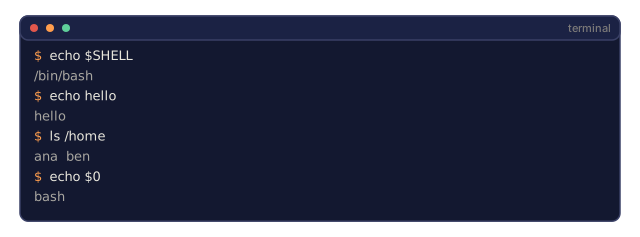
Check which shell you're running:
echo $SHELLMost systems use bash or zsh. Both work fine. Every command in this lesson works in either. Know these before anything else:
# Move around
cd ~/projects/taibui.dev
pwd
ls -la

# History search: the single most useful shortcut you'll learn
# Ctrl+R, then type part of a previous command. Press Ctrl+R again to cycle matches.

clear   # or Ctrl+L, clears the terminal
# Ctrl+C cancels a running command
# Ctrl+Z suspends it (resume with fg)
Filesystem Layout
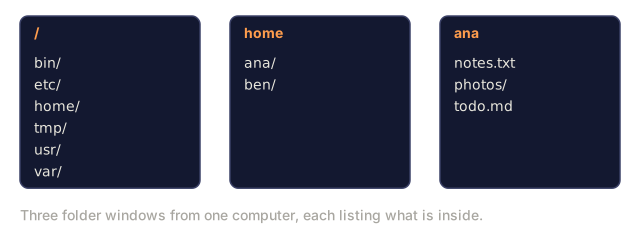
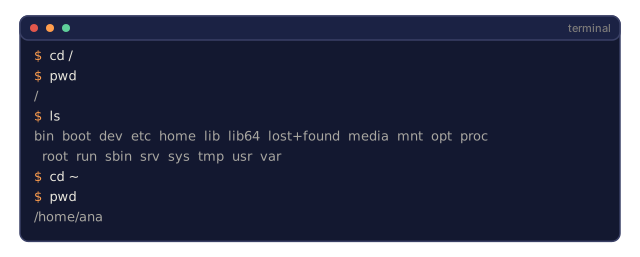
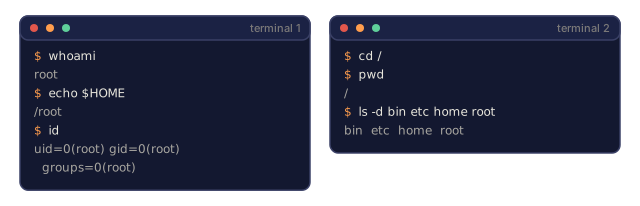
Linux organizes everything under a single root /, the top of one filesystem tree that every file on the system lives inside. There's no C:\ and no /Volumes.

Your home directory is ~, or /home/your-username in full. Almost everything you do happens here.
The 15 Commands That Cover 95% of It
Moving around:
pwd                         # Where am I?
ls                          # What's here?
ls -la                      # What's here, including hidden files, with details?
cd /path/to/dir             # Go there
cd ~                        # Go home
cd ..                       # Go up one level
Files and directories:
mkdir my-project            # Create a directory
mkdir -p a/b/c              # Create nested directories in one shot

cp file.txt backup.txt      # Copy a file
cp -r src/ src-backup/      # Copy a directory (recursive)

mv old.txt new.txt          # Rename a file
mv file.txt /tmp/           # Move a file

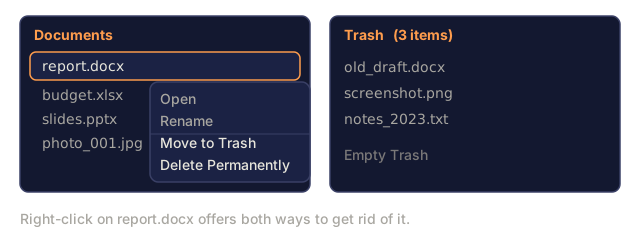
rm file.txt                 # Delete a file (no trash, it's gone)
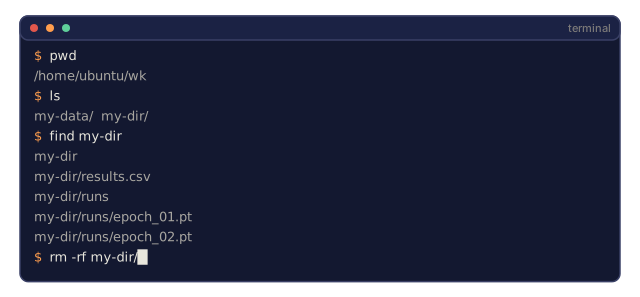
rm -rf my-dir/              # Delete a directory and everything inside
rm -rf is permanent. There is no undo. Double-check the path before hitting enter.
Reading files:
cat file.txt                # Print entire file
head -20 file.txt           # First 20 lines
tail -20 file.txt           # Last 20 lines
tail -f log.txt             # Follow a log file in real time (Ctrl+C to stop)
less file.txt               # Scroll through a file (q to quit)
Searching:
grep "error" training.log           # Find lines containing "error"
grep -r "learning_rate" .           # Search all files in current directory
grep -i "cuda" config.yaml          # Case-insensitive search

find . -name "*.py"                 # Find all Python files under current dir
find . -name "*.ckpt" -size +1G     # Find checkpoint files larger than 1GB
Users and sudo
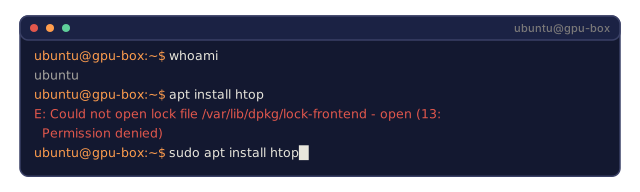
You're usually logged in as a regular user. Some operations need root, short for the root user, Linux's built-in administrator account with unrestricted access. That's a different "root" from the root / directory earlier; same word, unrelated meaning.
whoami                      # What user am I?
sudo command                # Run a single command as root
sudo su                     # Become root (exit to go back, use sparingly)
On cloud GPU instances you're typically the only user and already have sudo access. Don't run everything as root anyway. Use sudo only when something actually needs it. You'll see sudo show up constantly from here on, including in the permissions and package-install commands below, now that you know what it's doing.
Permissions
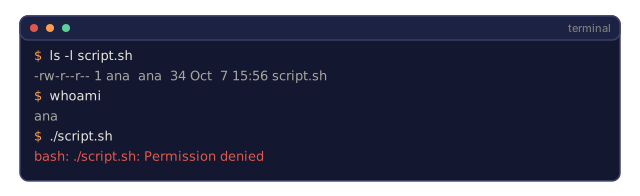
Every file has an owner and permission bits. You'll hit this the moment a script won't execute or you can't write to a directory.
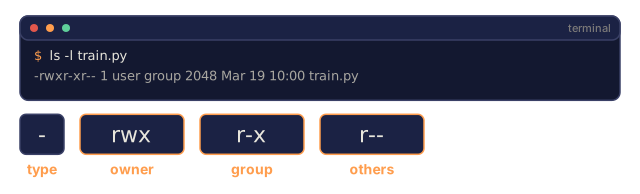
Unix permissions track three questions for every file: can the owner read, write, or run it; can the group; and can everyone else. Each of those three slots is a small yes/no/yes triple for read, write, and execute, which is why 755 and 644 below are nothing more than those triples written out as numbers.
ls -l train.py
# -rwxr-xr-- 1 user group 2048 Mar 19 10:00 train.py
#  ^^^             owner permissions: read, write, execute
#     ^^^          group permissions: read, execute
#        ^^        everyone else: read only
Common fixes:
chmod +x train.sh           # Make a script executable
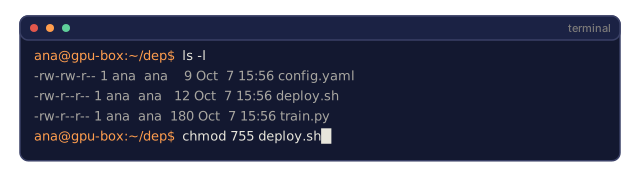
chmod 755 deploy.sh         # Owner: full, others: read+execute
chmod 644 config.yaml       # Owner: read+write, others: read only

chown user:group file.txt   # Change who owns a file (needs sudo)
When something says "Permission denied," it's almost always this. chmod +x or sudo fixes most cases.
Package Management with apt
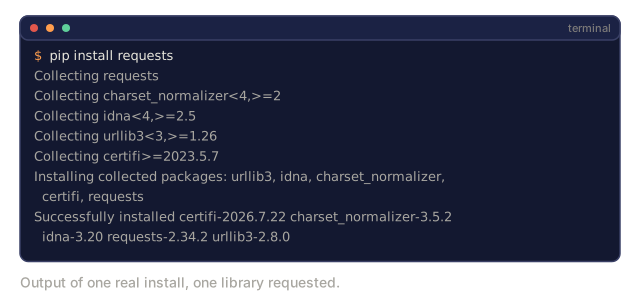
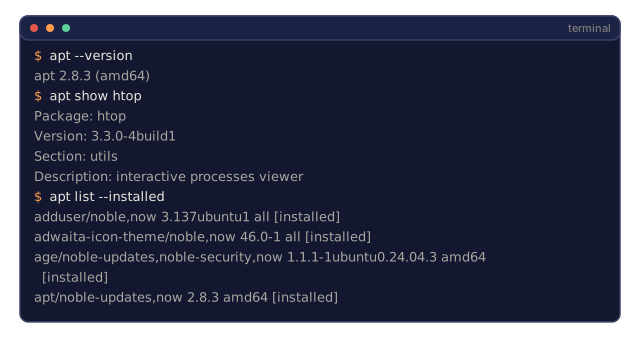
Ubuntu uses apt. This is how you install system-level software.
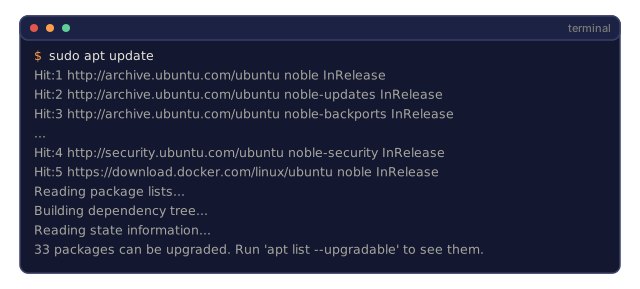
sudo apt update             # Refresh the package list (always do this first)
sudo apt install -y htop    # Install a package (-y skips confirmation)
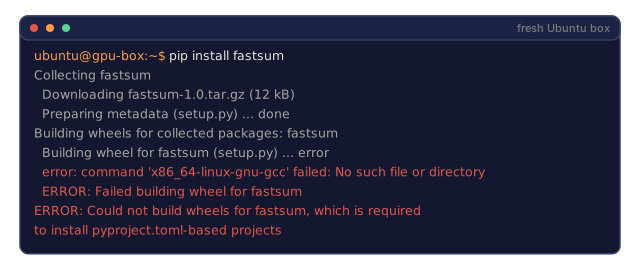
sudo apt install -y build-essential  # C compiler, make, etc., needed by many Python packages
sudo apt install -y tmux    # Terminal multiplexer, more on this below

apt list --installed        # What's installed?
sudo apt remove htop        # Uninstall
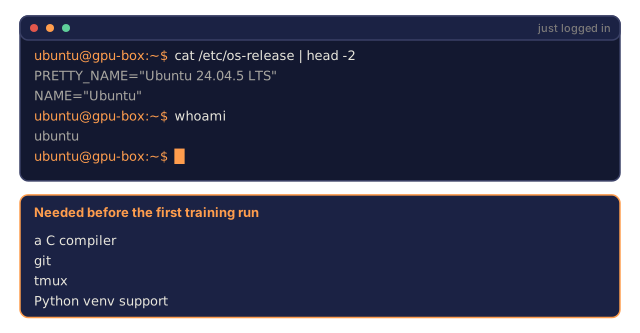
The set you'll install on basically every fresh GPU box:
sudo apt update && sudo apt install -y \
    build-essential \
    git \
    curl \
    wget \
    tmux \
    htop \
    unzip \
    python3-venv
Processes and systemd
A process is just a running instance of a program, and each one gets a numeric PID so you can point at exactly the one you want to stop.
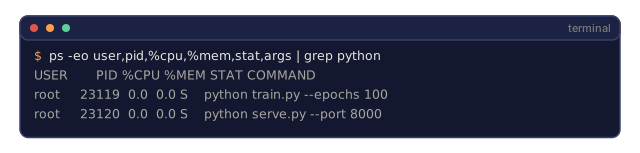
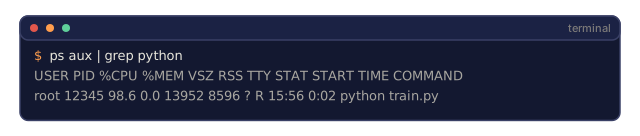
ps aux | grep python        # Find running Python processes
kill 12345                  # Gracefully stop process with PID 12345
kill -9 12345               # Force kill (when graceful doesn't work)
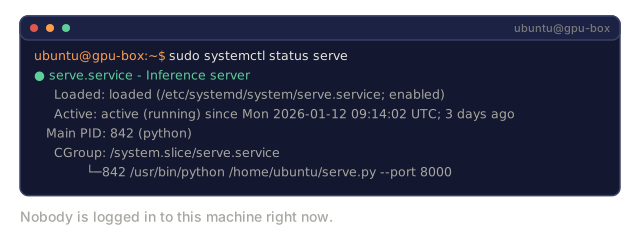
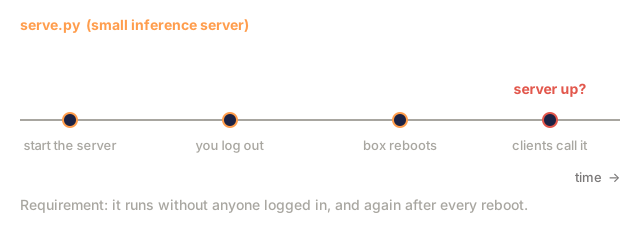
systemd manages background services, or daemons: programs like an inference server that keep running behind the scenes even after you log out. You'll touch it if you run inference servers:
sudo systemctl start nginx          # Start a service
sudo systemctl stop nginx           # Stop it
sudo systemctl restart nginx        # Restart it
sudo systemctl status nginx         # Check if it's running
sudo systemctl enable nginx         # Start automatically on boot
Disk Space
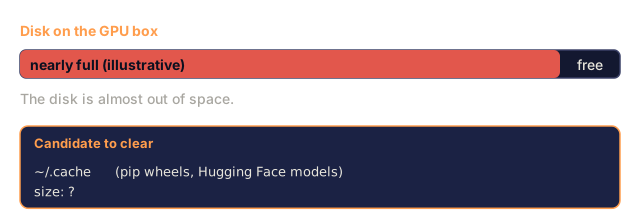
GPU boxes often have limited disk space, and models and datasets fill it fast.
df -h                       # Disk usage for all mounted drives
df -h /home                 # Disk usage for /home specifically

du -sh *                    # Size of each item in current directory
du -sh ~/.cache             # Size of your cache (pip, Hugging Face models land here)
du -sh /data/checkpoints/   # Check how big your checkpoints are

# Find the biggest space hogs
du -h --max-depth=1 / 2>/dev/null | sort -hr | head -20
Common space savers:
pip cache purge                                    # Clear pip cache
sudo apt clean                                      # Clear apt cache
rm -rf checkpoints/epoch_01/ checkpoints/epoch_02/  # Remove old checkpoints
macOS to Linux Gotchas
If you've used a Mac terminal before, here's where Linux will surprise you. If this is your first terminal ever, skim this table or skip it entirely; nothing else in the lesson depends on it.
| macOS | Linux | Notes |
|---|---|---|
brew install | sudo apt install | Package names sometimes differ: brew install htop and sudo apt install htop behave the same, but brew install readline and sudo apt install libreadline-dev do not. |
open file.txt | xdg-open file.txt | Moot on a remote box with no GUI anyway, so use cat or less. |
pbcopy / pbpaste | Not available | Pipe to/from the clipboard doesn't exist over SSH. |
~/.zshrc | ~/.bashrc | macOS defaults to zsh; most Linux servers default to bash. |
/opt/homebrew/ | /usr/bin/, /usr/local/bin/ | Binaries live in different places. |
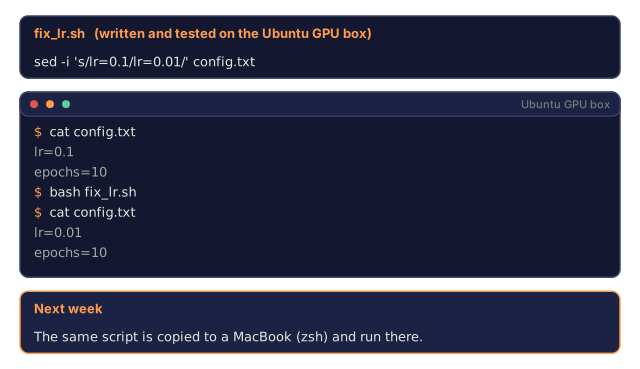
sed -i '' 's/a/b/' file | sed -i 's/a/b/' file | macOS sed needs an empty string after -i. Linux doesn't. |
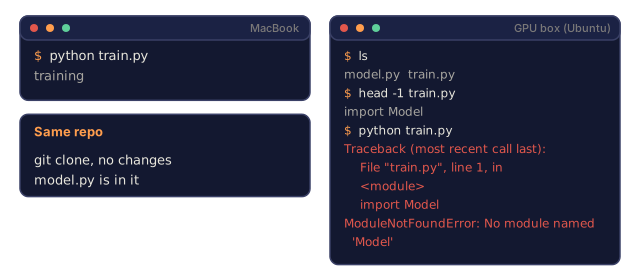
| Case-insensitive filesystem | Case-sensitive filesystem | Model.py and model.py are two different files on Linux. |
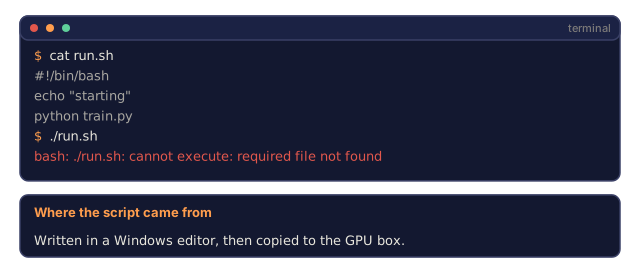
Line endings \n | Line endings \n | Same, but Windows uses \r\n, which breaks bash scripts. Run dos2unix to fix. |
Quick Reference Card
Navigation:     pwd, ls, cd, find
Files:          cp, mv, rm, mkdir, cat, head, tail, less
Search:         grep, find
Permissions:    chmod, chown, sudo
Packages:       apt update, apt install
Processes:      ps, kill, nvidia-smi
Services:       systemctl start/stop/restart/status
Disk:           df -h, du -sh
Network:        curl, wget, scp, rsync, ssh
Sessions:       tmux new/attach/detach
Build It
Everything above is the map. This is how you actually work a session end to end: piping data around, keeping training alive after you disconnect, and moving files to and from a box that doesn't have a GUI.
Piping and Redirects
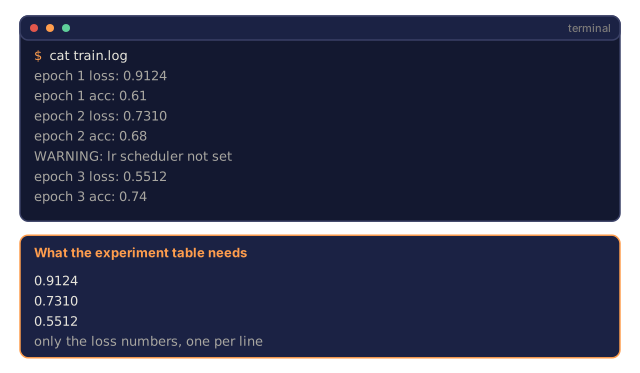
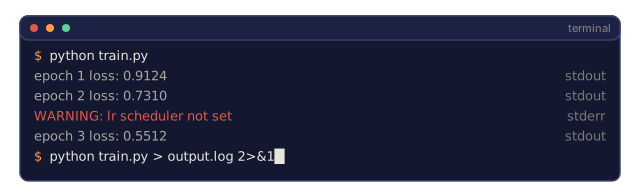
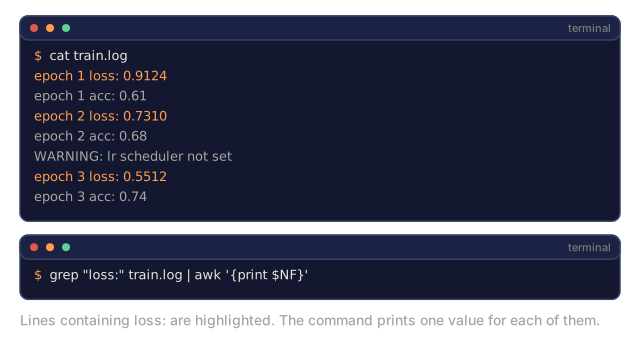
Every command reads from some input and writes to some output. By default that's your keyboard and your screen, but | reroutes one command's output to become the next command's input, letting you chain small tools together instead of writing one big program to do it all. That's how you process logs, filter output, and combine tools, and you'll use it constantly. grep finds the lines you care about; awk then picks out specific fields from those lines, so pairing them turns raw log noise into just the numbers you need.
# Count how many times "loss" appears in a log
cat train.log | grep "loss" | wc -l

# Extract just the loss values from training output ($NF means the last field on the line)
grep "loss:" train.log | awk '{print $NF}' > losses.txt

# Watch a log file update in real time, filtering for errors
tail -f train.log | grep --line-buffered "ERROR"

# Sort experiments by final accuracy
grep "final_accuracy" results/*.log | sort -t= -k2 -n -r

# Redirect stdout and stderr to separate files
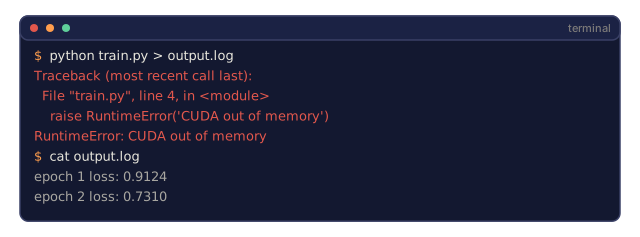
python train.py > output.log 2> errors.log

# Redirect both to the same file
python train.py > train_full.log 2>&1
The redirects you need, memorized:
| Symbol | What it does |
|---|---|
> | Write stdout to file (overwrite) |
>> | Append stdout to file |
2> | Write stderr to file |
2>&1 | Send stderr to the same place as stdout |
| | Send stdout of one command as stdin to the next |
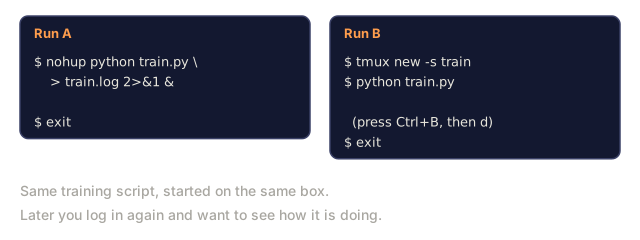
Background Processes, and Why & and nohup Aren't Enough
Training runs take hours. You don't want to keep a terminal open the whole time.
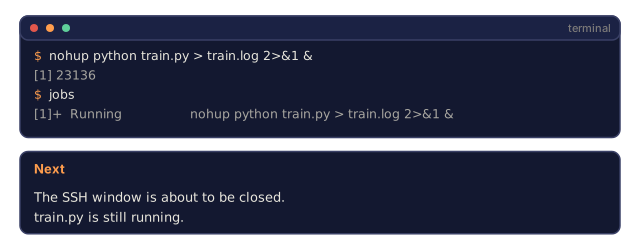
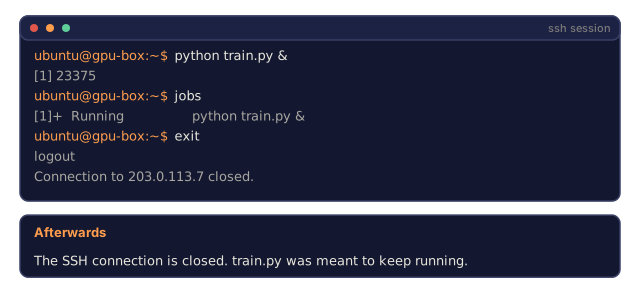
A command running in your terminal is in the foreground: it ties up that terminal until it finishes, and closing the terminal normally kills it too, via a signal called SIGHUP (literally "hangup," the same idea as a phone call ending). Add & to the end of a command and it moves to the background instead, freeing up your terminal, though it still dies with SIGHUP when you disconnect. nohup goes one step further and tells the process to ignore that signal entirely, which is why it survives you logging out. Each background job also gets a number, shown by jobs, and you refer back to it with %, so %1 means "job 1."
# Run in background (output still goes to terminal)
python train.py &

# Run in background, immune to hangup (closing the terminal won't kill it)
nohup python train.py > train.log 2>&1 &

# Check what's running in background
jobs
ps aux | grep train.py

# Bring background job 1 to the foreground
fg %1

# Kill background job 1
kill %1
# or find its PID and kill that
kill $(pgrep -f "train.py")
The honest comparison:
| Method | Survives terminal close? | Can reattach? |
|---|---|---|
command & | No | No |
nohup command & | Yes | No (check the log file) |
| tmux | Yes | Yes |
For anything longer than a few minutes, use tmux. That's the whole reason the next section exists.
tmux: One Persistent Session, Many Panes
This is the single most useful tool in this lesson. It deserves one clean explanation instead of a handful of scattered tips, so here it is, properly.
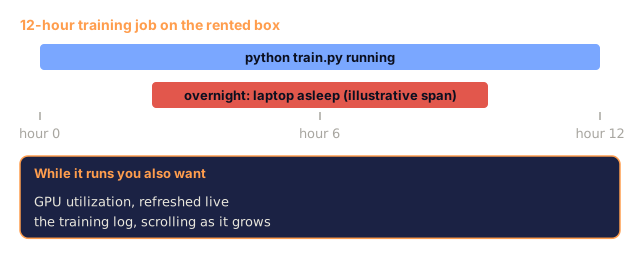
tmux gives you a terminal session that lives on the server, independent of your SSH connection. Close your laptop, lose your Wi-Fi, whatever. The session and everything running inside it keeps going. You reconnect and pick up exactly where you left off. Panes are just split-screen views into that same session, so you can watch a training log scroll by in one pane while you run commands in another, without opening a second SSH connection.
# Install
sudo apt install tmux       # Ubuntu
brew install tmux           # macOS

# Start a named session
tmux new -s train

# Split horizontally
# Ctrl+B then "

# Split vertically
# Ctrl+B then %

# Navigate between panes
# Ctrl+B then arrow keys

# Detach (session keeps running)
# Ctrl+B then d

# Reattach
tmux attach -t train

# List sessions
tmux ls

# Kill a session
tmux kill-session -t train
A typical training session, start to finish:
tmux new -s train

# Pane 1: start training
python train.py --epochs 100 --lr 1e-4

# Ctrl+B, " to split, then run the GPU monitor
watch -n1 nvidia-smi

# Ctrl+B, % to split vertically, tail the logs
tail -f logs/experiment.log

# Now detach with Ctrl+B, d
# SSH out, close your laptop, get coffee, come back
tmux attach -t train
Always run long training jobs inside tmux. Always.
Monitoring: htop, nvtop, nvidia-smi
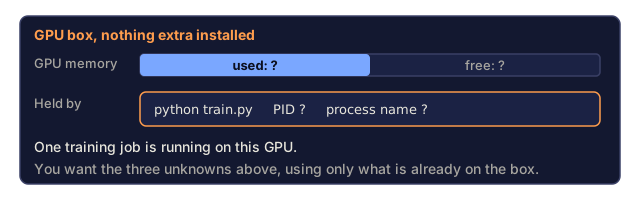
With tmux running, monitoring is just another pane. The three tools cover different layers: htop shows CPU and general process activity, nvtop shows the same thing but for GPU processes, and nvidia-smi is the raw driver-level readout you can also pipe into scripts.
htop                        # Interactive process viewer, better than top (q to quit)

nvtop                       # GPU process viewer (install: apt/brew install nvtop)

nvidia-smi                  # Quick GPU check without nvtop
watch -n1 nvidia-smi        # Same, refreshed every second

# See which processes are using the GPU, in a script-friendly format
nvidia-smi --query-compute-apps=pid,name,used_memory --format=csv
htop keybindings worth knowing:
F6or>: sort by column (sort by memory to find leaks)F5: toggle tree view (see child processes)F9: kill a process/: search for a process name
Connecting to Remote GPU Boxes
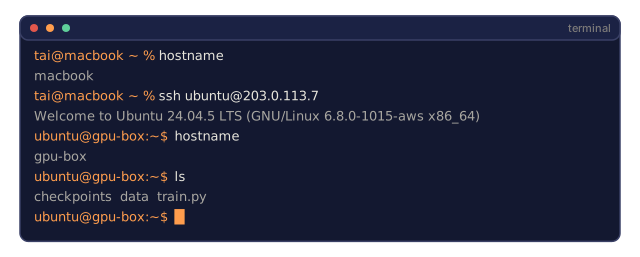
When you rent a cloud GPU from a provider like Lambda, RunPod, or Vast.ai, you connect over SSH.
# Basic connection
ssh user@gpu-box-ip

# With a specific key
ssh -i ~/.ssh/my_gpu_key user@gpu-box-ip

# Copy files to remote
scp model.pt user@gpu-box-ip:~/models/

# Copy files from remote
scp user@gpu-box-ip:~/results/metrics.json ./

# Sync a whole directory: faster for many files, resumes on failure
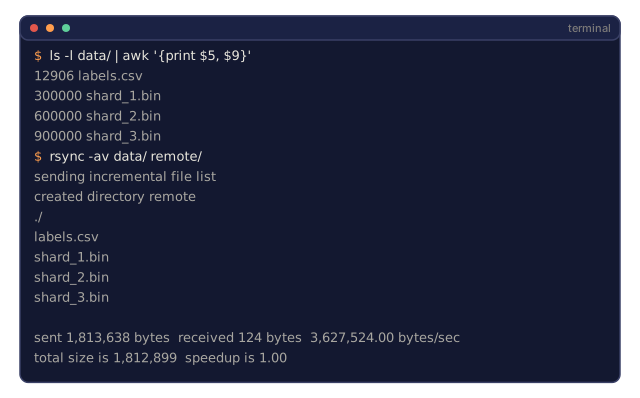
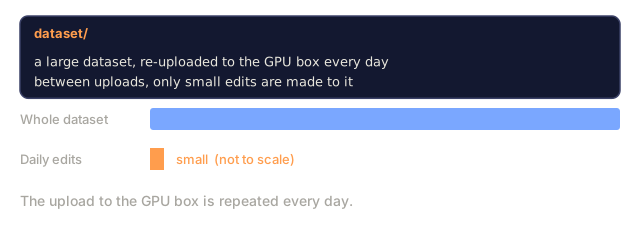
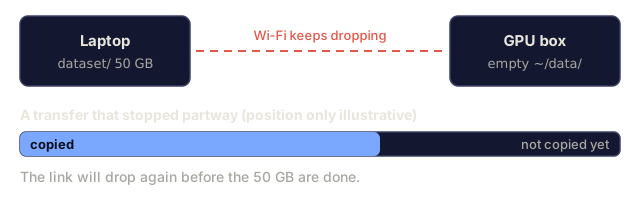
rsync -avz ./data/ user@gpu-box-ip:~/data/

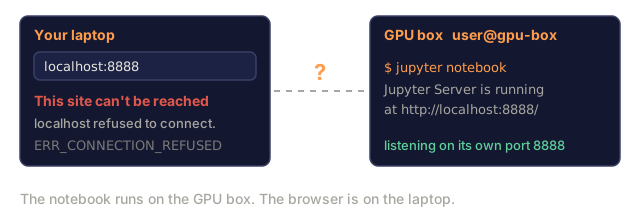
# Port forward (access remote Jupyter/TensorBoard locally)
ssh -L 8888:localhost:8888 user@gpu-box-ip
# Now open localhost:8888 in your browser
Use rsync over scp for anything large, because it only transfers changed bytes and survives an interrupted connection.
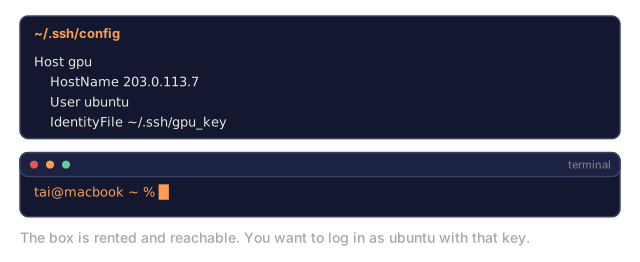
Save yourself the typing with an SSH config entry. Add to ~/.ssh/config:
Host gpu
    HostName 192.168.1.100
    User ubuntu
    IdentityFile ~/.ssh/gpu_key
Then just:
ssh gpuDownloading and unpacking things once you're connected:
wget https://huggingface.co/model/resolve/main/model.safetensors  # Download a model
curl -O https://example.com/data.tar.gz                            # Same thing with curl
tar xzf dataset.tar.gz -C ./data/                                   # Untar a dataset
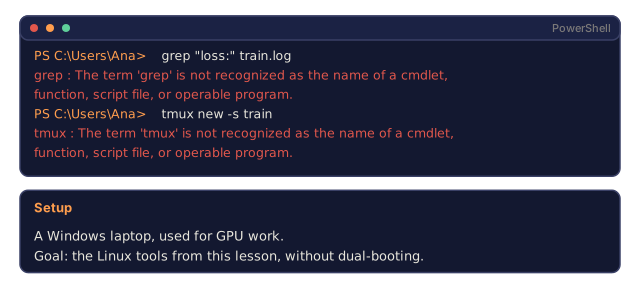
WSL2 for Windows Users
If you're on Windows, WSL2 gives you a real Linux environment without dual-booting.
# In PowerShell (admin)
wsl --install -d Ubuntu-24.04

# After restart, open Ubuntu from the Start menu
sudo apt update && sudo apt upgrade -y
WSL2 runs a real Linux kernel. Everything in this lesson works inside it. Your Windows files are at /mnt/c/Users/YourName/ from inside WSL.
GPU passthrough works with NVIDIA drivers installed on the Windows side. Install the Windows NVIDIA driver (not the Linux one), and CUDA is available inside WSL2.
Aliases and Common AI Terminal Patterns
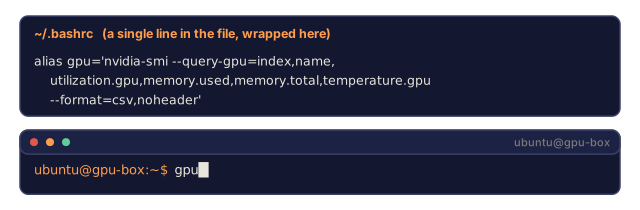
~/.bashrc and ~/.zshrc are files your shell automatically reads (sources) every time it starts, so anything you put there, like an alias, becomes available in every new terminal you open. Add these to ~/.bashrc or ~/.zshrc:
source phases/00-setup-and-tooling/04-the-command-line-and-linux/code/shell_aliases.shOr just copy the ones you want. The ones that pull their weight:
# GPU status at a glance
alias gpu='nvidia-smi --query-gpu=index,name,utilization.gpu,memory.used,memory.total,temperature.gpu --format=csv,noheader'

# Kill all Python training processes
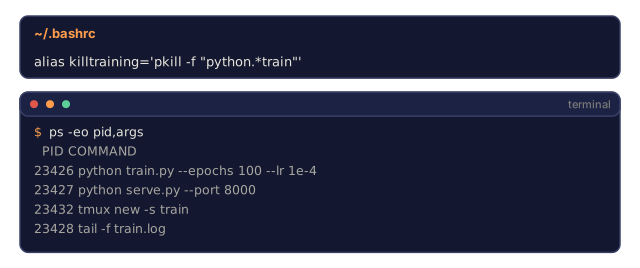
alias killtraining='pkill -f "python.*train"'

# Quick virtual environment activate
alias ae='source .venv/bin/activate'

# Watch training loss
alias watchloss='tail -f logs/*.log | grep --line-buffered "loss"'
See code/shell_aliases.sh for the full set.
A handful of patterns that come up repeatedly once you're actually running experiments:
# Run training, log everything, notify when done
python train.py 2>&1 | tee train.log; echo "DONE" | mail -s "Training complete" [email protected]

# Compare two experiment logs side by side
diff <(grep "accuracy" exp1.log) <(grep "accuracy" exp2.log)

# Find the largest model files (clean up disk space)
find . -name "*.pt" -o -name "*.safetensors" | xargs du -h | sort -rh | head -20

# Count lines in all Python files (see how big your project is)
find . -name "*.py" | xargs wc -l | tail -1

# Environment variable check before training
env | grep -i cuda
env | grep -i torch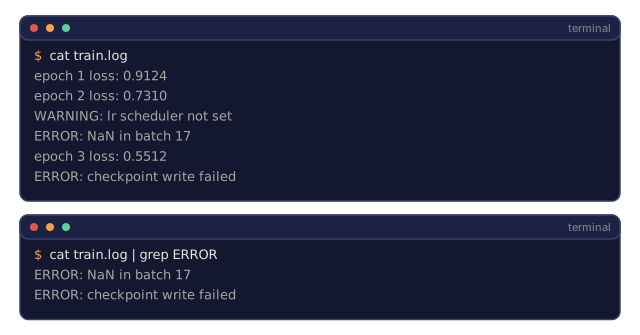
![A terminal window split into two panes, one running python train.py with epoch loss lines and one running tail -f logs/experiment.log, under a green status bar reading [train] 0:python*. Below it, tmux ls lists two sessions, train and sweep.](/quiz-visuals/00-setup-and-tooling/04-the-command-line-and-linux/n4.svg)
Use It
Here's when each of these actually comes up as you move through the rest of the course:
| Tool | When you use it |
|---|---|
Filesystem nav, chmod, apt | Setting up any fresh GPU box, day one |
| tmux | Every training run from Phase 3 onward |
tail -f + grep | Monitoring training logs |
nohup / & | Quick background tasks that don't need a full tmux session |
htop / nvtop | Debugging slow training, OOM errors |
SSH + rsync / scp | Working on rented cloud GPUs |
| Piping + redirects | Processing experiment results |
df / du | Whenever a disk fills up with checkpoints |
| Aliases | Saving time on repetitive commands |
I almost kept these as two separate lessons: Linux-the-operating-system on one side, terminal-the-tool on the other. But you never actually learn them that way. You SSH into a box, ls around to get oriented, hit a permissions error, fix it with chmod, start training in a tmux pane, and pipe the log through grep, all inside the same five minutes. The line between "this is Linux" and "this is the terminal" doesn't exist in practice, so it shouldn't exist in the lesson either.
Exercises
- SSH into any Linux machine (or open WSL2) and navigate to your home directory. Create a project folder with
mkdir -p, create three empty files inside it withtouch, list them withls -la, thenchmod +xone of them and confirm the change withls -l. - Install
htopandnvtopwithapt. Start a tmux session with three panes:htopin one,watch -n1 nvidia-smi(orwatch -n1 dateif you don't have a GPU) in another, and a running Python script in the third. Detach, then reattach. - Create a fake training log with
for i in $(seq 1 100); do echo "epoch $i loss: $(echo "scale=4; 1/$i" | bc)"; sleep 0.1; done > fake_train.logand usegrep,tail, andawkto extract just the loss values. - Add the aliases from
code/shell_aliases.shto your shell config and reload withsource ~/.zshrc(or~/.bashrc). - Set up an SSH config entry for a server you have access to (or
localhost, to practice the syntax), then transfer a file to it once withscpand once withrsyncand compare the experience. - Use
df -hto check available disk space, thendu -sh ~/.cache/*(or any large directory) to find what's actually taking up the room.
Key Terms
| Term | What people say | What it actually means |
|---|---|---|
| Shell | "The terminal" | The program that interprets your commands (bash, zsh, fish) |
| tmux | "Terminal multiplexer" | A program that lets you run multiple terminal sessions inside one window, and detach/reattach without killing what's running inside |
| Pipe | "The bar thing" | The | operator that sends one command's output as input to another |
| PID | "Process ID" | A unique number assigned to every running process, used to monitor or kill it |
| nohup | "No hangup" | Runs a command immune to the hangup signal, so closing the terminal won't kill it |
| SSH | "Connecting to the server" | Secure Shell, an encrypted protocol for running commands on a remote machine |
| chmod | "Making it executable" | Changes a file's read/write/execute permission bits for owner, group, and everyone else |
| sudo | "Root mode" | Temporarily elevates a single command to root (administrator) privileges |
| apt | "Installing stuff on Linux" | Ubuntu/Debian's package manager for system-level software |
| systemd | "The thing that runs services" | Linux's init system and service manager, which starts, stops, and restarts background daemons |
| rsync | "Better scp" | A file-sync tool that transfers only changed bytes and resumes on a dropped connection |
Code
- shell_aliases.sh (bash, 144 lines)