Compute: GPUs, Cloud & Containers
Find out what silicon you're actually running on, prove it's fast, then trap the whole setup in a box so nobody, including future you, has to guess again.
Learning Objectives
- Verify local GPU access with `nvidia-smi` and PyTorch's CUDA API, or spin up a free T4 on Google Colab if you don't have one
- Benchmark matrix multiplication on CPU vs GPU and estimate the largest model your VRAM can hold
- Build a GPU-enabled Docker image with CUDA, PyTorch, and the NVIDIA Container Toolkit so the setup is reproducible
- Mount volumes for models and datasets, then orchestrate a multi-service AI stack (inference server + vector database) with Docker Compose
The Problem
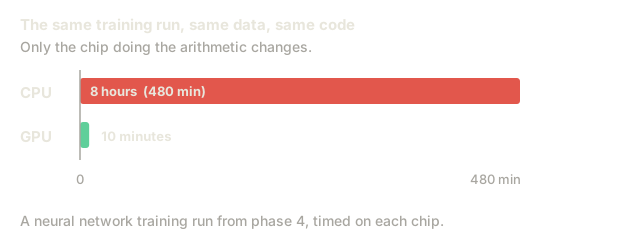
Most lessons up to this point run fine on CPU. The moment you start training CNNs, transformers, or LLMs (phase 4 and up), CPU stops being an option. A training run that takes 8 hours on CPU takes 10 minutes on GPU. Here's why: a GPU packs thousands of small cores built to do the same simple operation on many numbers at once, which is exactly what matrix multiplication needs. A CPU has only a handful of cores, optimized for fast sequential logic rather than that kind of raw parallel throughput. You need to know, right now, what compute you actually have: none, a GPU bolted into your laptop, or one you rent by the hour.
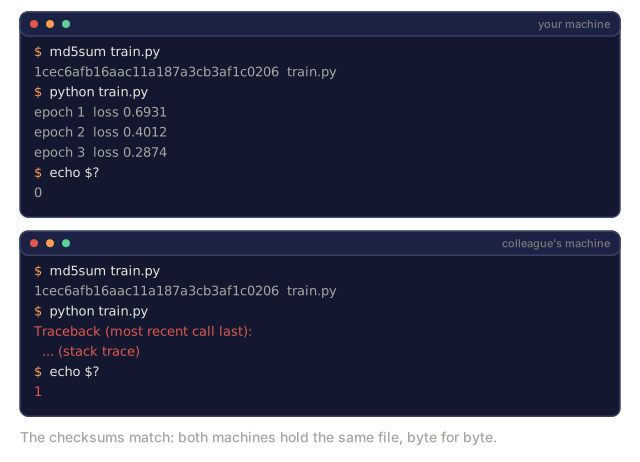
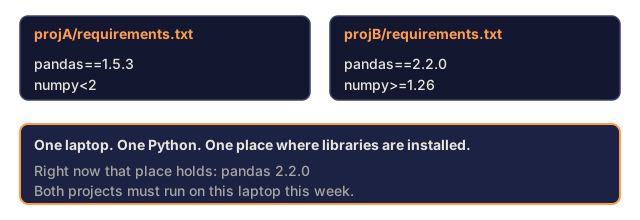
That's half the problem. The other half shows up the first time you hand your code to someone else, or to a server. You trained on PyTorch 2.3, CUDA 12.4, Python 3.12. Your colleague has PyTorch 2.1, CUDA 11.8, Python 3.10. Your model crashes on their machine — not because the code is wrong, but because the world underneath it is different. AI stacks are dependency nightmares: Python, PyTorch, CUDA drivers, cuDNN, system-level C libraries, and packages like flash-attn that need an exact compiler version to even build. Misalign any one of those and you lose an afternoon to a stack trace that has nothing to do with your model.
Fix both problems in order: figure out your compute first, then trap the whole environment around it in something portable.
The Concept
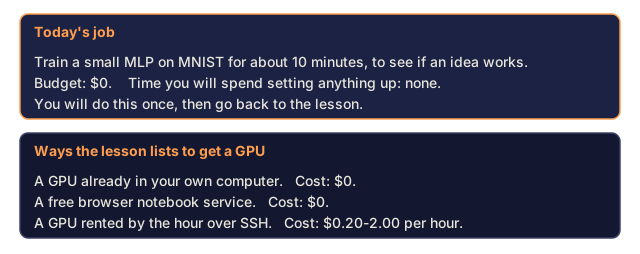
Three ways to get a GPU
1. Local NVIDIA GPU
   Cost: $0 (you already have it)
   Setup: Install CUDA + cuDNN
   Best for: regular use, large datasets

2. Google Colab (free tier)
   Cost: $0
   Setup: none
   Best for: quick experiments, no GPU at home

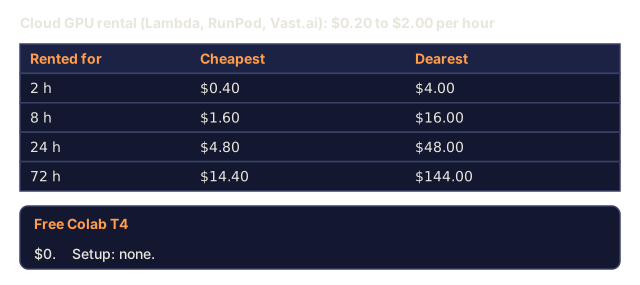
3. Cloud GPU (Lambda, RunPod, Vast.ai)
   Cost: $0.20-2.00/hr
   Setup: SSH + install
   Best for: serious training, large models
Pick based on what you're actually doing, not what sounds impressive. A Colab T4 covers almost everything in phases 1-3. Save the paid cloud rental for training runs that would otherwise tie up your laptop for a day.
Once the GPU is worth keeping, containerize around it
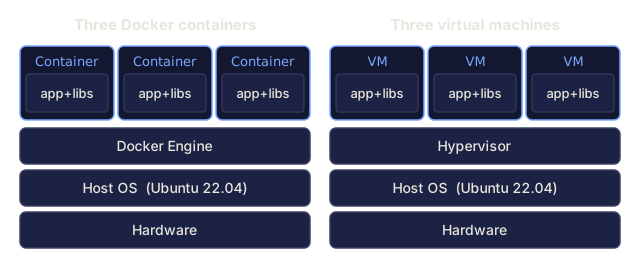
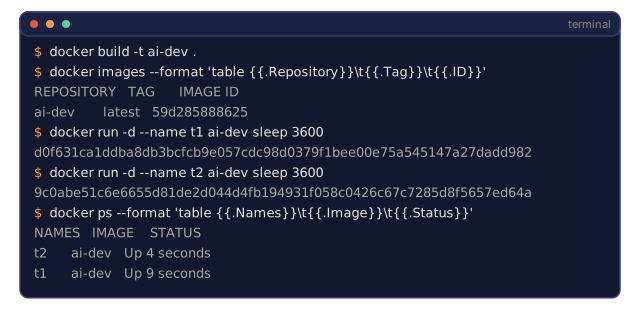
A container wraps your code, runtime, libraries, and system tools into one isolated unit. I think of it as a lightweight VM that cheats: it shares the host OS kernel instead of running its own, so it starts in seconds instead of minutes.

This matters more for AI work than for typical software, for three reasons:
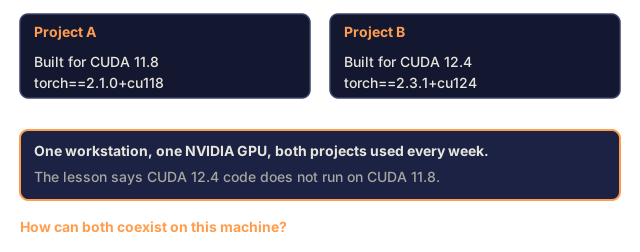
- GPU drivers are fragile. CUDA 12.4 code does not run on CUDA 11.8. Docker isolates the CUDA toolkit inside the container while sharing the host GPU driver through the NVIDIA Container Toolkit.
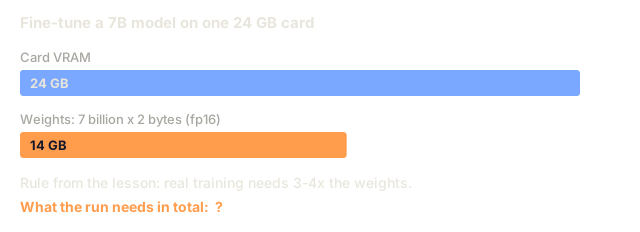
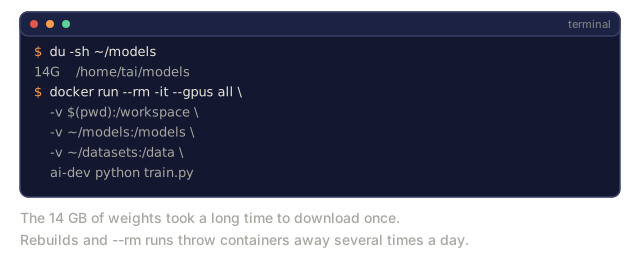
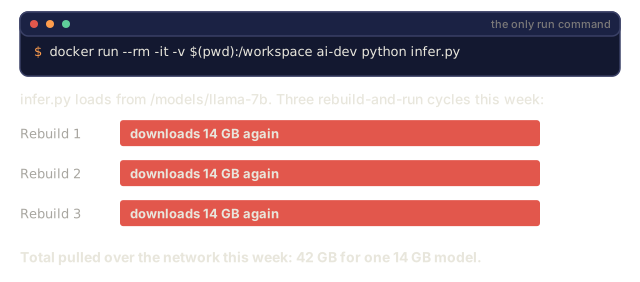
- Model weights are large. A 7B parameter model is 14 GB in fp16. You do not want to re-download it every time you rebuild, so volumes solve exactly this.
- Real AI apps are multi-service. An inference server, a vector database (a database built for similarity search; you'll meet retrieval-augmented generation, or RAG, properly much later in the course), maybe a web frontend. Docker Compose starts all of it with one command.
| Term | What it means |
|---|---|
| Image | A read-only template. Your recipe. Built from a Dockerfile. |
| Container | A running instance of an image. Your kitchen. |
| Dockerfile | Instructions to build an image, layer by layer. |
| Volume | Persistent storage that survives container restarts. |
| docker-compose | A tool for defining multi-container applications in YAML. |
You'll actually build three container shapes, roughly in the order you'll reach for them:
Dev Container
  Full toolkit. Editor support. Jupyter. Debugging tools.
  Used during development and experimentation.

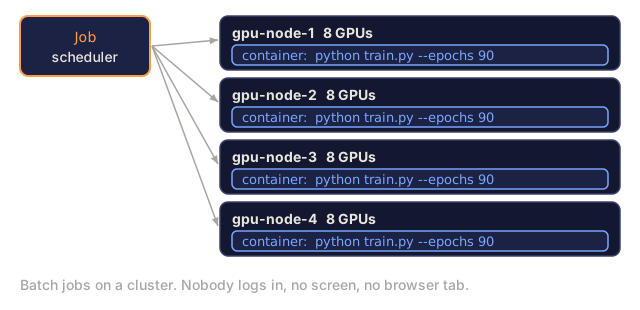
Training Container
  Minimal. Just the training script and dependencies.
  Runs on GPU clusters. No editor, no Jupyter.

Inference Container
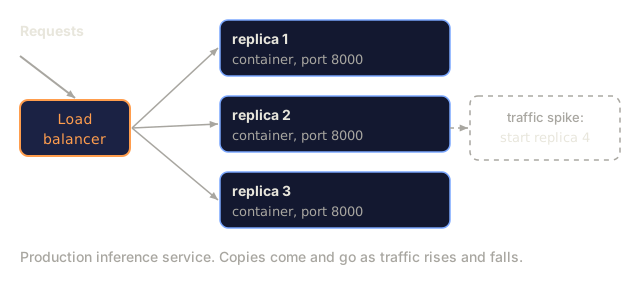
  Optimized for serving. Small image. Fast cold start.
  Runs behind a load balancer (spreads incoming requests across
  multiple copies of your service) in production.
Build It
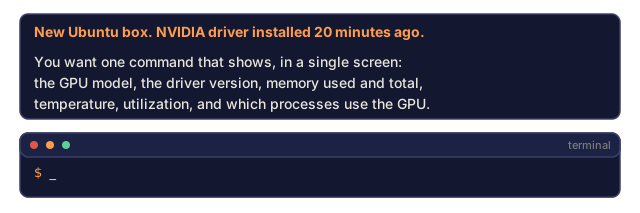
Step 1: Check what GPU you actually have
nvidia-smiThen confirm PyTorch sees it:
import torch

print(f"CUDA available: {torch.cuda.is_available()}")
print(f"CUDA version: {torch.version.cuda}")
if torch.cuda.is_available():
    print(f"GPU: {torch.cuda.get_device_name(0)}")
    print(f"Memory: {torch.cuda.get_device_properties(0).total_memory / 1e9:.1f} GB")
No local GPU? Two more doors:
Google Colab. Go to colab.research.google.com, Runtime > Change runtime type > T4 GPU, then run !nvidia-smi to verify. Upload notebooks from this course directly to Colab.
Cloud GPU (Lambda, RunPod, Vast.ai).
ssh user@your-gpu-instance

pip install torch torchvision torchaudio
python -c "import torch; print(torch.cuda.get_device_name(0))"
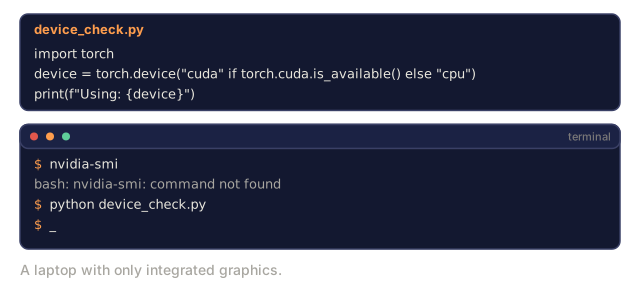
And if you have none of the above: most lessons work on CPU. The ones that need GPU say so and include a Colab link. Write device-agnostic code from day one:
device = torch.device("cuda" if torch.cuda.is_available() else "cpu")
print(f"Using: {device}")
Step 2: Prove the speedup, don't take it on faith
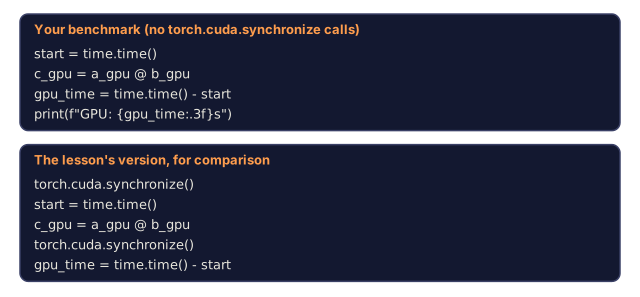
One thing to know before you read the code below: GPU work is asynchronous. Python queues the operation and moves on immediately, while the GPU finishes the actual computation in the background. That's why the benchmark calls torch.cuda.synchronize() right before it starts the clock and right after it stops: without that wait, you'd be timing how fast Python can queue instructions, not how fast the GPU runs them.
import torch
import time

size = 5000

a_cpu = torch.randn(size, size)
b_cpu = torch.randn(size, size)

start = time.time()
c_cpu = a_cpu @ b_cpu
cpu_time = time.time() - start
print(f"CPU: {cpu_time:.3f}s")

if torch.cuda.is_available():
    a_gpu = a_cpu.to("cuda")
    b_gpu = b_cpu.to("cuda")

    torch.cuda.synchronize()
    start = time.time()
    c_gpu = a_gpu @ b_gpu
    torch.cuda.synchronize()
    gpu_time = time.time() - start
    print(f"GPU: {gpu_time:.3f}s")
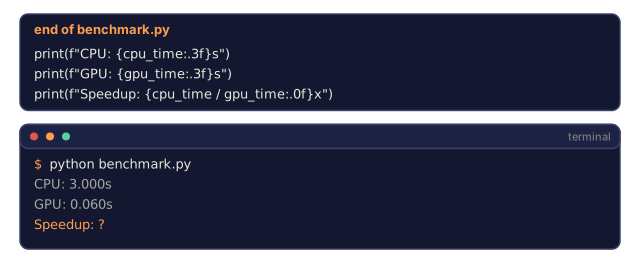
    print(f"Speedup: {cpu_time / gpu_time:.0f}x")
Run it a few times. The exact speedup varies with your GPU, but on anything from the last several years you should see 20-100x for a 5000x5000 multiply, not a modest improvement.
Step 3: Install Docker
# macOS
brew install --cask docker
open /Applications/Docker.app

# Ubuntu
curl -fsSL https://get.docker.com | sh
sudo usermod -aG docker $USER
# Log out and back in for group change to take effect
Verify:
docker --version
docker run hello-world
Step 4: Install the NVIDIA Container Toolkit (Linux with an NVIDIA GPU)
This is what lets a container reach through to your GPU. macOS users, and Windows users on WSL2 (Windows's Linux compatibility layer), can skip this: Docker Desktop handles GPU passthrough differently there.
distribution=$(. /etc/os-release;echo $ID$VERSION_ID)
curl -fsSL https://nvidia.github.io/libnvidia-container/gpgkey | sudo gpg --dearmor -o /usr/share/keyrings/nvidia-container-toolkit-keyring.gpg
curl -s -L https://nvidia.github.io/libnvidia-container/$distribution/libnvidia-container.list | \
    sed 's#deb https://#deb [signed-by=/usr/share/keyrings/nvidia-container-toolkit-keyring.gpg] https://#g' | \
    sudo tee /etc/apt/sources.list.d/nvidia-container-toolkit.list

sudo apt-get update
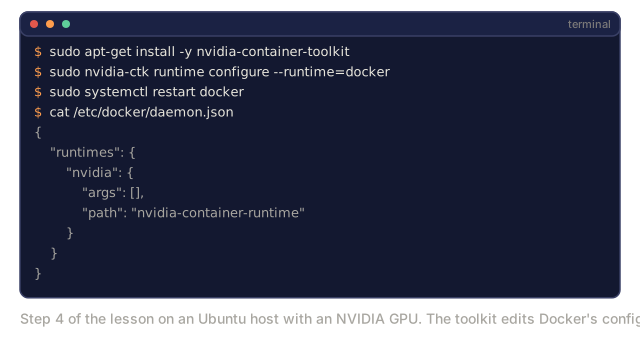
sudo apt-get install -y nvidia-container-toolkit
sudo nvidia-ctk runtime configure --runtime=docker
sudo systemctl restart docker
Test it:
docker run --rm --gpus all nvidia/cuda:12.4.1-base-ubuntu22.04 nvidia-smiIf you see your GPU info, the toolkit is working.
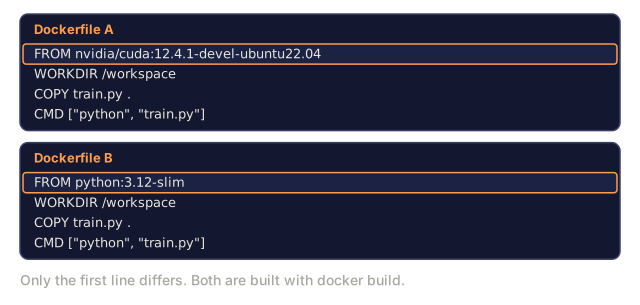
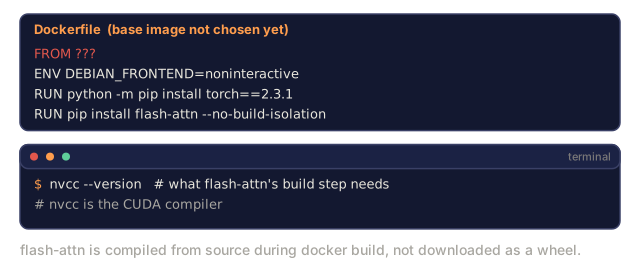
Step 5: Pick the right base image
This single choice saves or costs you hours of debugging later.
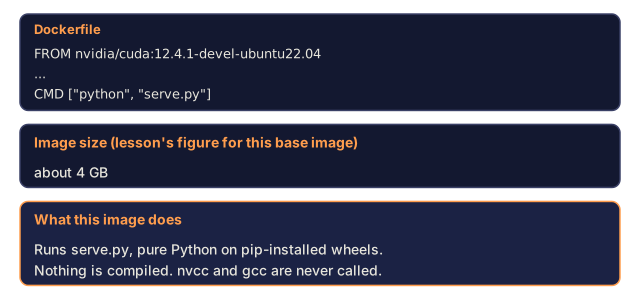
nvidia/cuda:12.4.1-devel-ubuntu22.04
  Full CUDA toolkit. Compilers included.
  Use for: building packages that need nvcc (flash-attn, bitsandbytes)
  Size: ~4 GB

nvidia/cuda:12.4.1-runtime-ubuntu22.04
  CUDA runtime only. No compilers.
  Use for: running pre-built code
  Size: ~1.5 GB

pytorch/pytorch:2.3.1-cuda12.4-cudnn9-runtime
  PyTorch pre-installed on top of CUDA.
  Use for: skipping the PyTorch install step
  Size: ~6 GB

python:3.12-slim
  No CUDA. CPU only.
  Use for: inference on CPU, lightweight tools
  Size: ~150 MB
Step 6: Write the Dockerfile
code/Dockerfile:
FROM nvidia/cuda:12.4.1-devel-ubuntu22.04

# noninteractive stops apt from pausing mid-build to ask questions (like a timezone prompt)
# that nobody is there to answer during an automated build
ENV DEBIAN_FRONTEND=noninteractive
ENV PYTHONUNBUFFERED=1

# rm -rf /var/lib/apt/lists/* below clears apt's package index cache after install;
# you don't need it, and leaving it in just makes the image bigger
RUN apt-get update && apt-get install -y --no-install-recommends \
    python3.12 \
    python3.12-venv \
    python3.12-dev \
    python3-pip \
    git \
    curl \
    build-essential \
    && rm -rf /var/lib/apt/lists/*

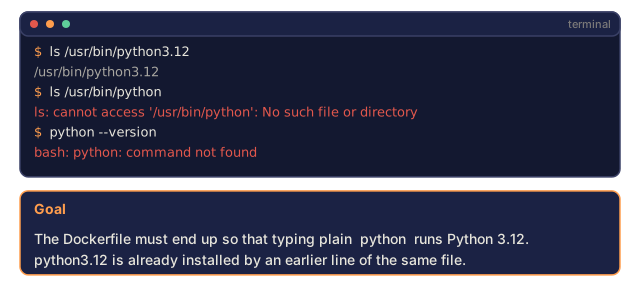
# Ubuntu ships several Python versions side by side; this points the plain `python`
# command at 3.12 specifically
RUN update-alternatives --install /usr/bin/python python /usr/bin/python3.12 1

RUN python -m pip install --no-cache-dir --upgrade pip setuptools wheel

RUN python -m pip install --no-cache-dir \
    torch==2.3.1 \
    torchvision==0.18.1 \
    torchaudio==2.3.1 \
    --index-url https://download.pytorch.org/whl/cu124

RUN python -m pip install --no-cache-dir \
    numpy \
    pandas \
    scikit-learn \
    matplotlib \
    jupyter \
    transformers \
    datasets \
    accelerate \
    safetensors

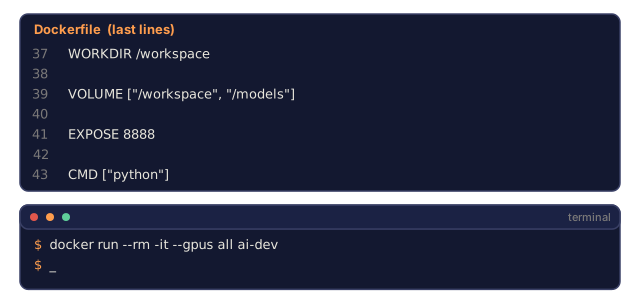
WORKDIR /workspace

VOLUME ["/workspace", "/models"]

EXPOSE 8888

CMD ["python"]
Build it:
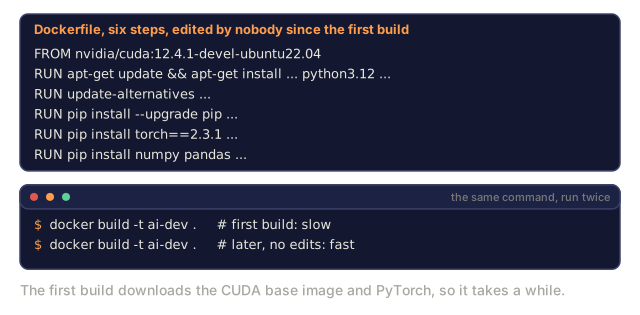
docker build -t ai-dev -f phases/00-setup-and-tooling/03-compute-gpus-cloud-and-containers/code/Dockerfile .The first build takes a while because it's downloading the CUDA base image and PyTorch. Later builds reuse cached layers and are fast.
Run it:
docker run --rm -it --gpus all \
    -v $(pwd):/workspace \
    -v ~/models:/models \
    ai-dev python -c "import torch; print(f'PyTorch {torch.__version__}, CUDA: {torch.cuda.is_available()}')"
Or run Jupyter inside it:
docker run --rm -it --gpus all \
    -v $(pwd):/workspace \
    -v ~/models:/models \
    -p 8888:8888 \
    ai-dev jupyter notebook --ip=0.0.0.0 --port=8888 --no-browser --allow-root
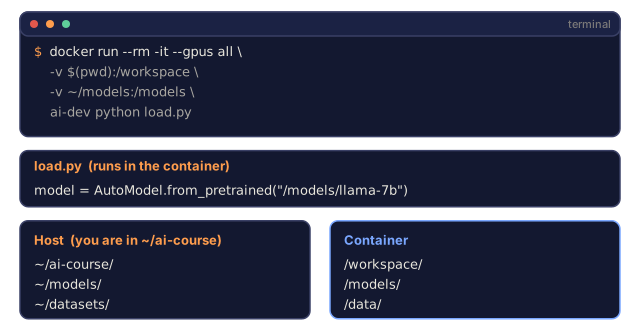
Step 7: Mount volumes so nothing gets re-downloaded
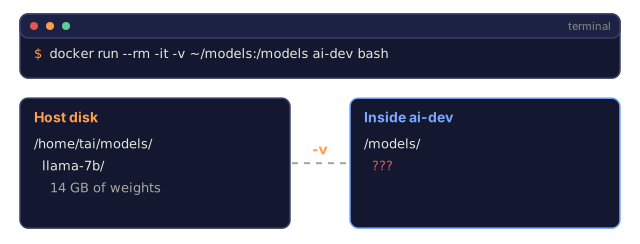
Without a volume mount, everything inside a container disappears when it stops, including a model checkpoint you just spent an hour downloading.
# Mount your code
-v $(pwd):/workspace

# Mount a shared models directory
-v ~/models:/models

# Mount datasets
-v ~/datasets:/data
Load from the mounted path in your training script:
from transformers import AutoModel

model = AutoModel.from_pretrained("/models/llama-7b")
The model lives on your host filesystem. Rebuild the container as often as you like without re-downloading anything.
Step 8: Docker Compose for multi-service AI apps
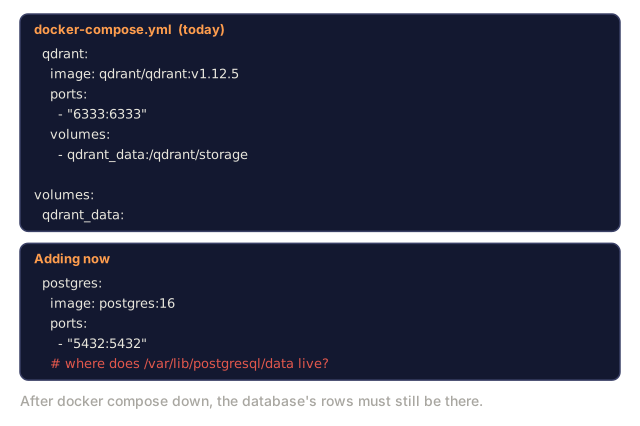
A real RAG app is more than one script: at minimum, an inference server plus a vector database. code/docker-compose.yml runs both with one command.
If YAML is new to you: it expresses nested data through indentation instead of brackets, key: value pairs hold settings, and a leading - marks a list item, like the ports: list a few lines down. Indentation is meaningful, so match it exactly, or the file quietly means something you didn't intend.
services:
  ai-dev:
    build:
      context: .
      dockerfile: Dockerfile
    deploy:
      resources:
        reservations:
          devices:
            - driver: nvidia
              count: all
              capabilities: [gpu]
    volumes:
      - ../../../:/workspace
      - ~/models:/models
      - ~/datasets:/data
    ports:
      - "8888:8888"
    stdin_open: true
    tty: true
    command: jupyter notebook --ip=0.0.0.0 --port=8888 --no-browser --allow-root

  qdrant:
    image: qdrant/qdrant:v1.12.5
    ports:
      - "6333:6333"
      - "6334:6334"
    volumes:
      - qdrant_data:/qdrant/storage

volumes:
  qdrant_data:
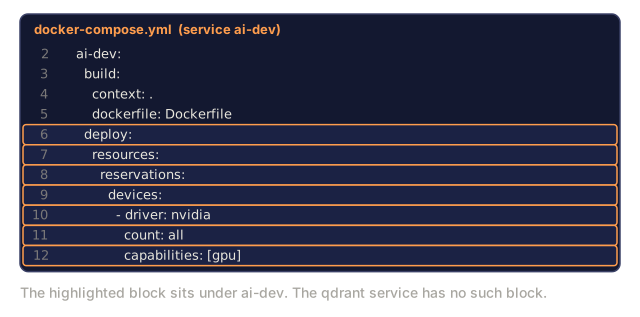
The deploy.resources.reservations.devices block under ai-dev is how you tell Compose "this container needs GPU access." It's doing the same job as the --gpus all flag you passed to plain docker run earlier, just expressed in YAML.
Start everything:
cd phases/00-setup-and-tooling/03-compute-gpus-cloud-and-containers/code
docker compose up -d
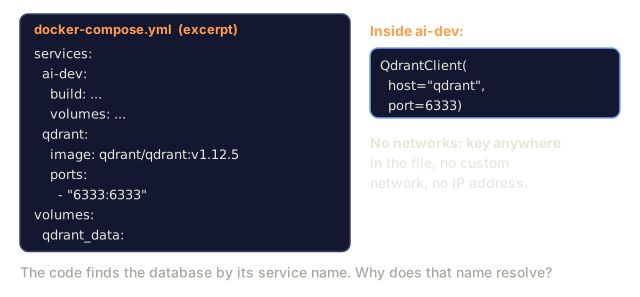
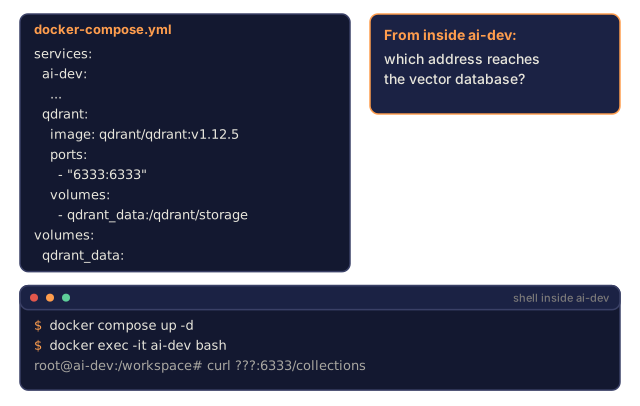
Your ai-dev container can now reach the vector database at http://qdrant:6333 by service name. Compose creates a shared network automatically, so no manual networking is required:
from qdrant_client import QdrantClient

client = QdrantClient(host="qdrant", port=6333)
print(client.get_collections())
Stop everything:
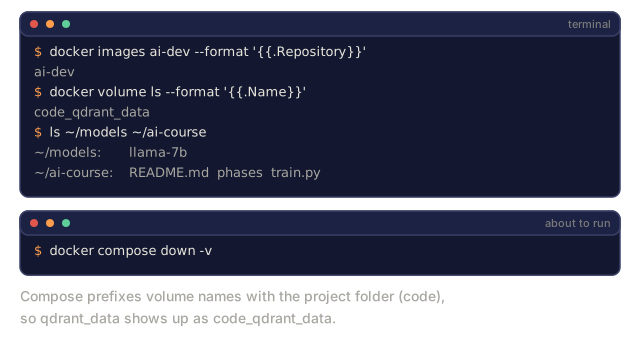
docker compose downAdd -v to also delete the qdrant volume:
docker compose down -vStep 9: Commands you'll actually reach for
# List running containers
docker ps

# List all images and their sizes
docker images

# Remove unused images (reclaim disk space)
docker system prune -a

# Check GPU usage inside a running container
docker exec -it <container_id> nvidia-smi

# Copy a file from container to host
docker cp <container_id>:/workspace/results.csv ./results.csv

# View container logs
docker logs -f <container_id>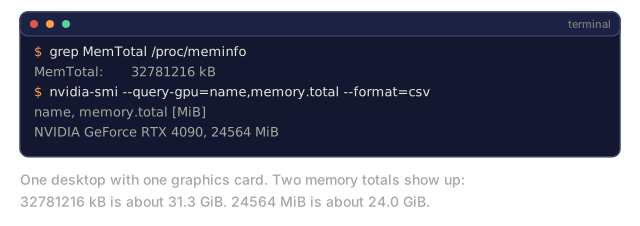
Use It
You now have a reproducible AI development environment, with a proven GPU story underneath it. For the rest of this course:
- Use
docker compose upto start your dev environment and vector database together. - Mount code, models, and data as volumes so nothing is lost between rebuilds.
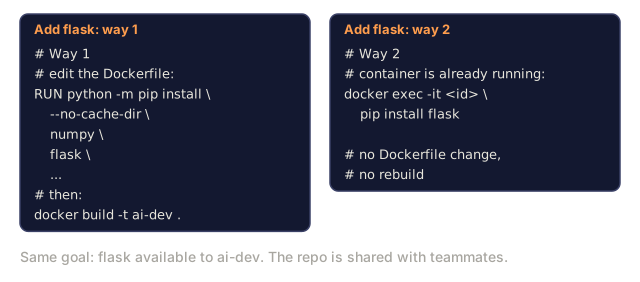
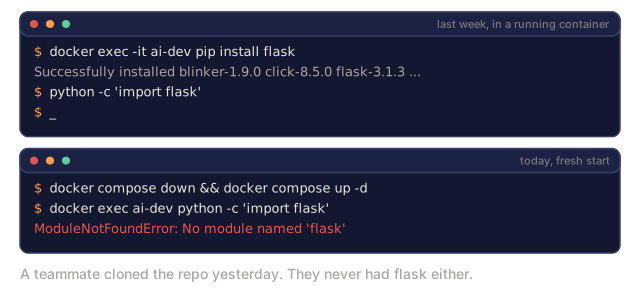
- When a lesson needs a new Python package, add it to the Dockerfile and rebuild. Don't
pip installinside a running container and forget you did it. - Share your Dockerfile with teammates. They get the exact same environment, not an approximation of it.
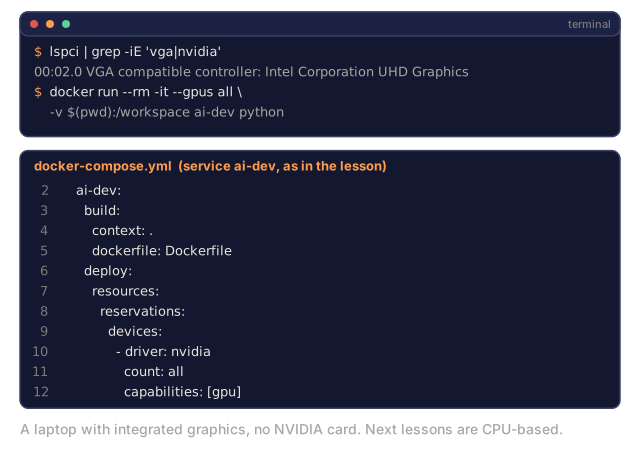
No GPU?
Drop the --gpus all flag and the NVIDIA deploy block from Compose. The container still works for CPU-based lessons: PyTorch detects the absence of CUDA and falls back to CPU automatically, and the same device = torch.device(...) line from Step 1 handles it either way.
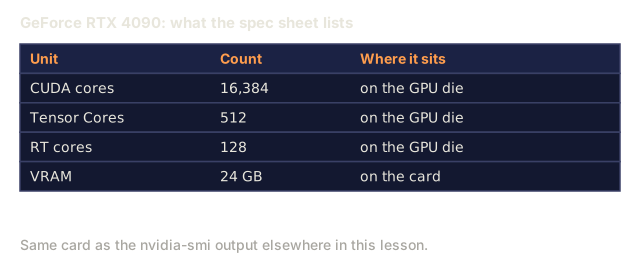
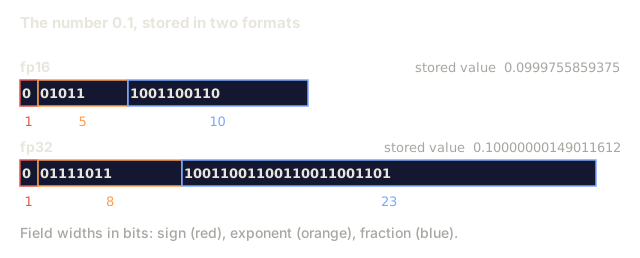
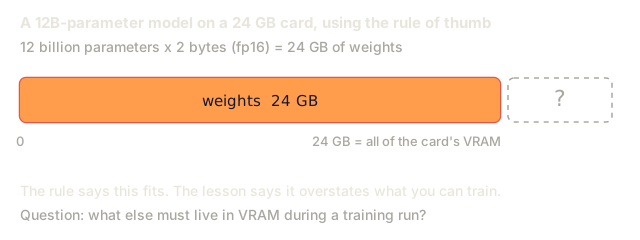
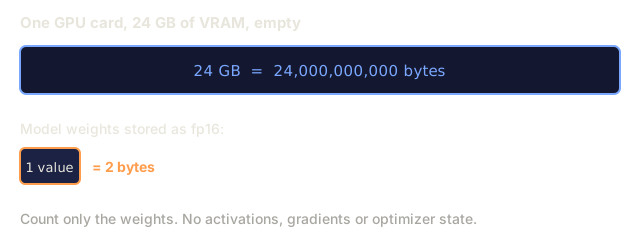
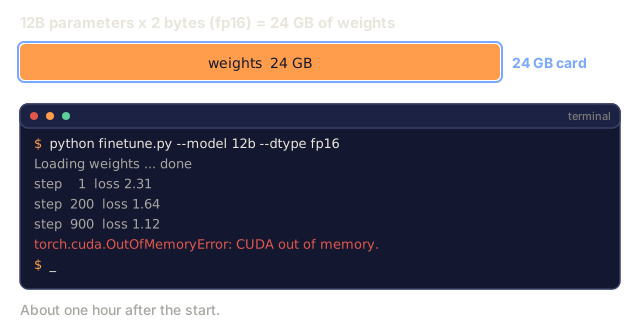
The fp16 parameter math is the one calculation from this lesson worth memorizing rather than looking up. A model's weights are just numbers, and how much space each one takes depends on the precision format you store them in: fp16 uses 2 bytes per number, fp32 uses 4, so total memory is roughly parameters times bytes per parameter. At 2 bytes per parameter, a 24 GB card holds roughly 12 billion parameters, and that's before a single activation, gradient, or optimizer state gets loaded, which is why real training needs 3-4x that headroom. I've watched people learn this the expensive way, an hour into a run they never should have attempted on that card. Do the arithmetic before you queue the job, not after the OOM (out-of-memory crash).
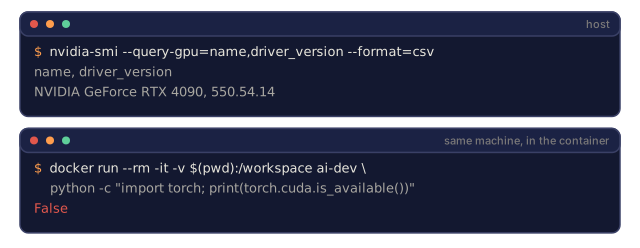
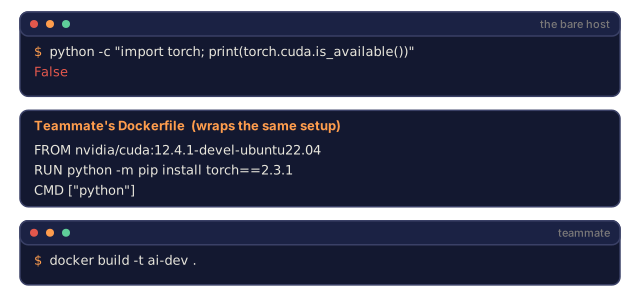
The same discipline applies to the order of these two topics. Don't reach for Docker before you've confirmed the GPU story works bare-metal: nvidia-smi and torch.cuda.is_available() both returning what you expect, on the host, no container involved. A Dockerfile that wraps a broken setup just gives you a portable, shareable version of the same problem.
Exercises
- Run the CPU vs GPU benchmark and compare times. No local GPU? Run it on Google Colab instead.
- Check how much GPU memory you have and estimate the largest model you could fit, using the fp16 rule of thumb (2 bytes per parameter).
- Build the Dockerfile and run
python -c "import torch; print(torch.__version__)"inside the container. - Start the docker-compose stack and verify Qdrant is reachable from the AI container at
http://qdrant:6333/collections. - Add
flaskto the Dockerfile, rebuild, and run a simple API server on port 5000. Map the port with-p 5000:5000. - Measure the image size with
docker images. Switch the base image fromdeveltoruntimeand compare sizes.
Key Terms
| Term | What people say | What it actually means |
|---|---|---|
| CUDA | "GPU programming" | NVIDIA's parallel computing platform that lets you run code on the GPU |
| VRAM | "GPU memory" | Video RAM on the GPU, separate from system RAM. Limits model size. |
| fp16 | "Half precision" | 16-bit floating point, uses half the memory of fp32 with minimal accuracy loss |
| Tensor Core | "Fast matrix hardware" | Specialized GPU cores for matrix multiplication, 4-8x faster than regular cores |
| Container | "Lightweight VM" | An isolated process using the host kernel, with its own filesystem and network |
| Image layer | "Cached step" | Each Dockerfile instruction creates a layer. Unchanged layers are cached, so rebuilds are fast. |
| NVIDIA Container Toolkit | "GPU in Docker" | A runtime hook that exposes host GPUs to containers via the --gpus flag |
| Volume mount | "Shared folder" | A directory on the host mapped into the container. Changes persist after the container stops. |
| Base image | "Starting point" | The FROM image your Dockerfile builds on top of. Determines what is pre-installed. |
Code
- gpu_check.py (python, 58 lines)
- docker-compose.yml (yaml, 33 lines)
- Dockerfile (dockerfile, 44 lines)