Debugging and Profiling AI Code
The worst AI bugs don't crash. They train silently on garbage for eight hours, burn your GPU budget, and hand you a beautiful loss curve on the way out.
Learning Objectives
- Use conditional `breakpoint()` and `debug_print` to inspect tensor shapes, dtypes, and NaN values mid-training
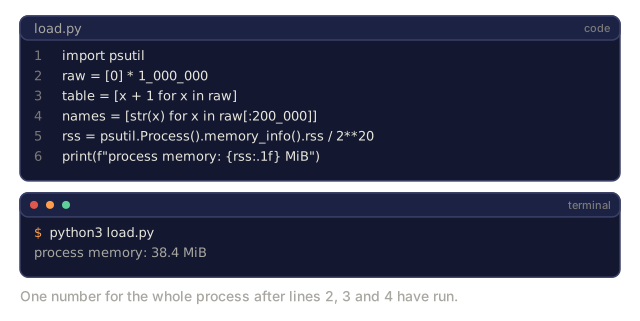
- Profile training loops with `cProfile`, `line_profiler`, and `tracemalloc` to find bottlenecks
- Recognize the four bugs that show up in almost every training run: shape mismatches, NaN loss, data leakage, and wrong-device tensors
- Set up TensorBoard to visualize loss curves, weight histograms, and gradient distributions
The Problem
By this point in Phase 0 you've got a machine, a compute setup, a shell you're comfortable in, an editor, and access to the APIs and data you need. That's the whole workshop, wired up. This lesson is the last piece: what happens when something in that workshop is actually broken.
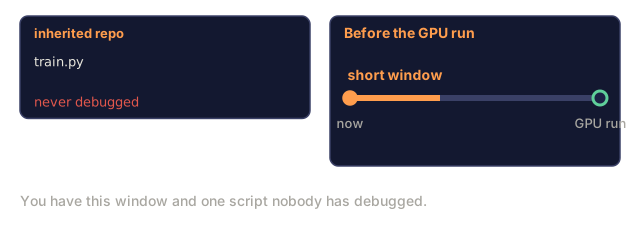
One honest note before we go further: everything from here on assumes you've already trained a model, or at least watched a training loop run and seen gradients update. Lessons 1 through 6 assumed nothing. This one assumes real PyTorch familiarity, because it's the last lesson in the phase and the next real use for it is Phase 2 and 3, where you'll be neck-deep in tensors every day. If you haven't trained anything yet, that's fine. Skim this lesson for the shape of it now, then come back once you have a training loop of your own to point these tools at. The concepts will land much harder once you've felt the problem they solve.
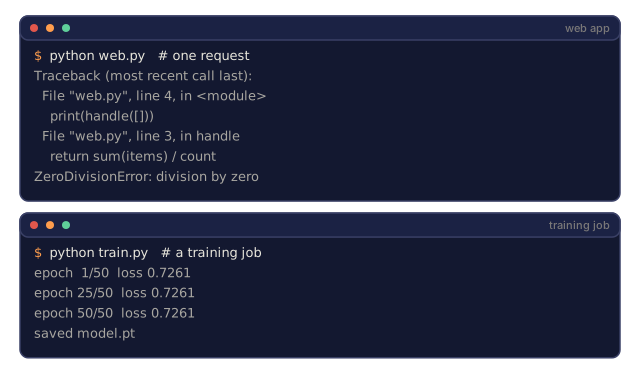
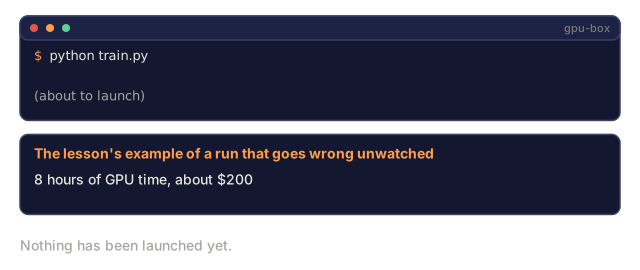
And AI code breaks in a way regular code doesn't. A web app crashes with a stack trace, you get a line number, you fix it. A misconfigured training loop doesn't do you that favor. It runs for eight hours, burns $200 in GPU time, and hands back a model that has learned to predict the mean of every input. No exception. No red text. The loss curve even looks fine if you don't know what you're looking at.
The bug was never going to throw. It was a tensor sitting on the wrong device, a .detach() you forgot to call, or labels that leaked into the features three preprocessing steps ago. None of that raises an error. All of it wastes your afternoon and your compute budget.
So you need a different set of tools than the ones you'd reach for debugging a REST API. Not because Python debugging changes, but because the failure mode changes: from "it crashed" to "it lied to you convincingly."
The Concept
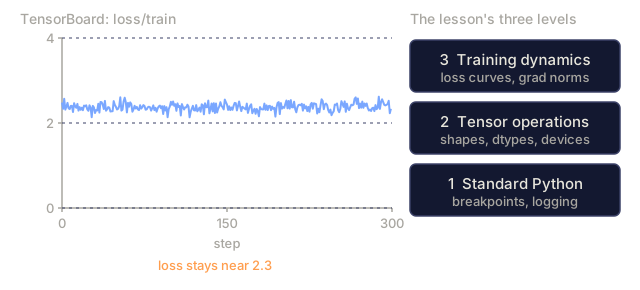
I think about AI debugging as three levels, and almost everyone starts at the wrong one.

Most people's first instinct when a model isn't learning is to open TensorBoard and stare at curves, which is level 3. But in my experience 80% of AI bugs live at levels 1 and 2: a print statement that shows a tensor has the wrong shape, or a breakpoint() that catches a NaN two lines before it would otherwise have propagated silently through the rest of the run. TensorBoard tells you training is unhealthy. It rarely tells you why. Levels 1 and 2 do.
Build It
Part 1: Print debugging (yes, it still works)
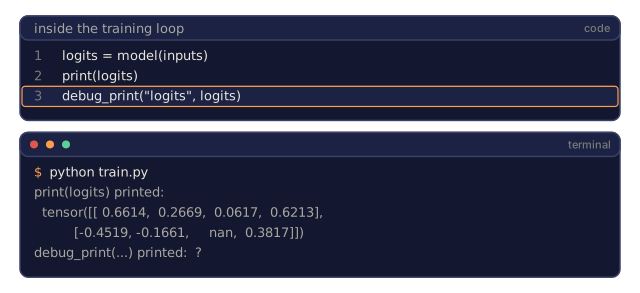
Print debugging gets a bad reputation it hasn't earned. For tensor code specifically, one well-placed print beats stepping through a debugger, because you need to see shape, dtype, device, and value range all at once, not one variable at a time.
def debug_print(name, tensor):
    print(f"{name}: shape={tensor.shape}, dtype={tensor.dtype}, "
          f"device={tensor.device}, "
          f"min={tensor.min().item():.4f}, max={tensor.max().item():.4f}, "
          f"mean={tensor.mean().item():.4f}, "
          f"has_nan={tensor.isnan().any().item()}")
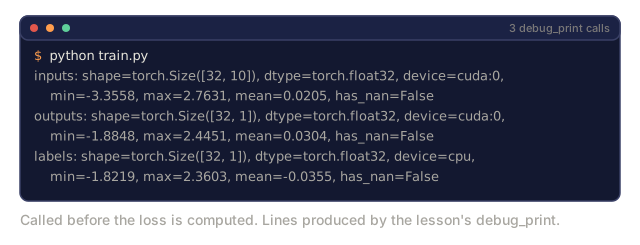
Here's the kind of bug it actually catches. Say you move your model to GPU but forget to move a freshly-loaded batch of labels along with it. Nothing crashes right away; PyTorch either raises later, deep in the loss function, or in older code paths silently does the wrong thing. Call debug_print("labels", labels) right before you compute the loss and the line reads device=cpu while everything else says device=cuda:0. That single line tells you exactly what's wrong before the loss function gets a chance to confuse you with an unrelated error.
Drop this after every operation you don't fully trust. Find the bug, delete the prints. That's the whole workflow, and there's no shame in it.
Part 2: pdb and breakpoint()
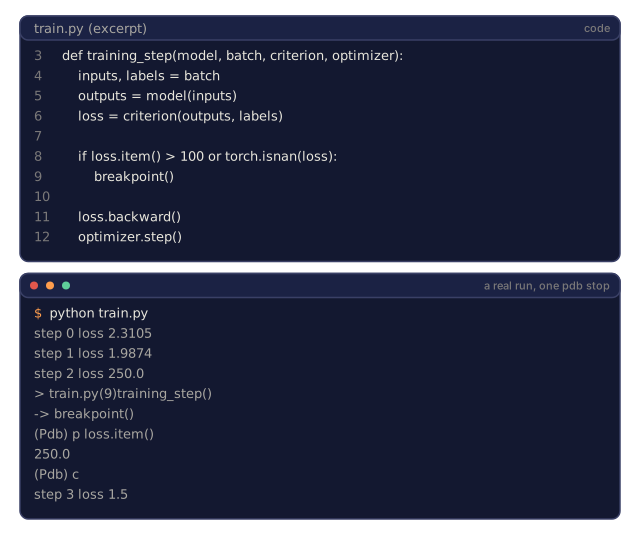
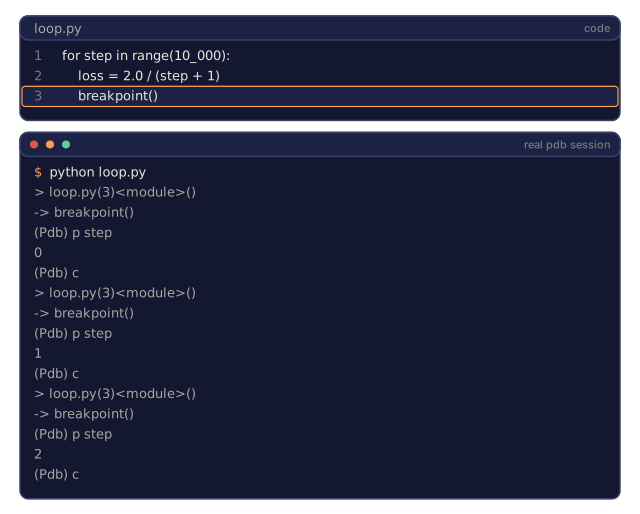
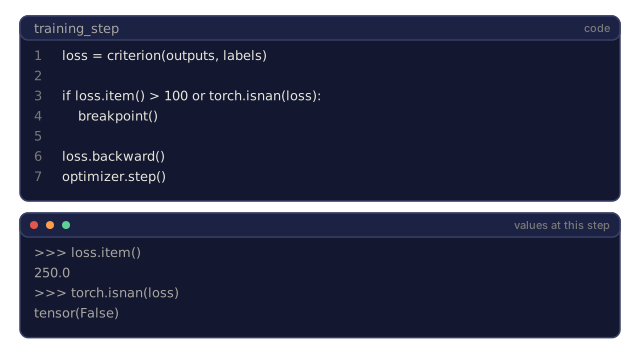
The stdlib debugger is more useful for AI work than it gets credit for. But drop breakpoint() into a training loop unconditionally and you'll regret it. Stopping at every single step of a 10,000-step run isn't debugging, it's a loop you'll kill out of frustration before you find anything. The fix is a guard that only fires when something's actually gone wrong.
def training_step(model, batch, criterion, optimizer):
    inputs, labels = batch
    outputs = model(inputs)
    loss = criterion(outputs, labels)

    if loss.item() > 100 or torch.isnan(loss):
        breakpoint()

    loss.backward()
    optimizer.step()
That if guard is what makes this a conditional breakpoint: you drop into the interactive prompt only when the loss looks broken, not on every step. Once you're dropped in, a handful of commands cover most of what you need:
p outputs.shape: check shapesp loss.item(): see the loss valuep torch.isnan(outputs).sum(): count NaNsp model.fc1.weight.grad: check gradientscto continue,qto quit
Part 3: Logging, once print outgrows itself
When your debugging session needs to survive past the terminal you're staring at, switch from print to logging.
import logging

logging.basicConfig(
    level=logging.INFO,
    format="%(asctime)s [%(levelname)s] %(message)s",
    handlers=[
        logging.FileHandler("training.log"),
        logging.StreamHandler()
    ]
)
logger = logging.getLogger(__name__)

logger.info("Starting training: lr=%.4f, batch_size=%d", lr, batch_size)
logger.warning("Loss spike detected: %.4f at step %d", loss.item(), step)
logger.error("NaN loss at step %d, stopping", step)
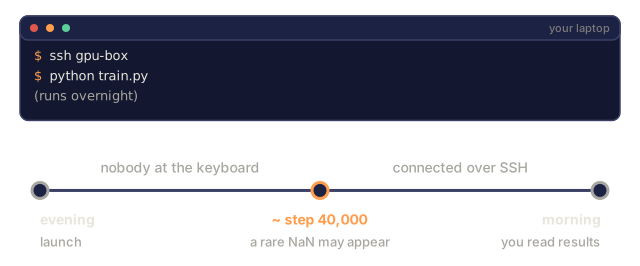
Logging buys you timestamps, severity levels, and a file that survives after your terminal scrolls or the SSH session drops. When a run dies at 3 AM, you want training.log, not a scrollback buffer you already lost.
Part 4: Timing code sections
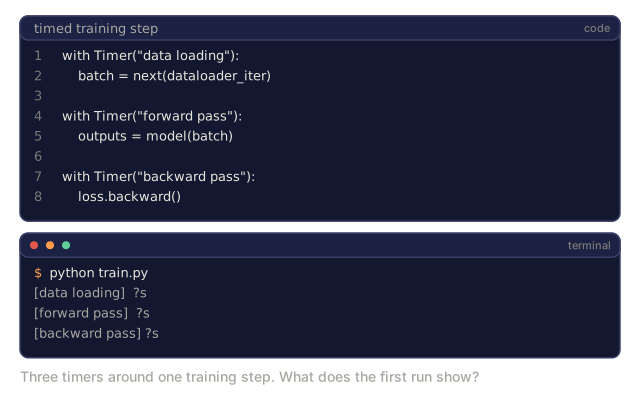
You can't optimize what you haven't measured. A small context-manager timer tells you exactly where the seconds are going.
import time

class Timer:
    def __init__(self, name=""):
        self.name = name

    def __enter__(self):
        self.start = time.perf_counter()
        return self

    def __exit__(self, *args):
        elapsed = time.perf_counter() - self.start
        print(f"[{self.name}] {elapsed:.4f}s")

with Timer("data loading"):
    batch = next(dataloader_iter)

with Timer("forward pass"):
    outputs = model(batch)

with Timer("backward pass"):
    loss.backward()
The most common finding when people run this for the first time: data loading eats 60% of the wall clock. The fix is num_workers > 0 on your DataLoader, not a bigger GPU. I've seen people spend money solving a problem a keyword argument would have fixed for free.
Part 5: cProfile and line_profiler
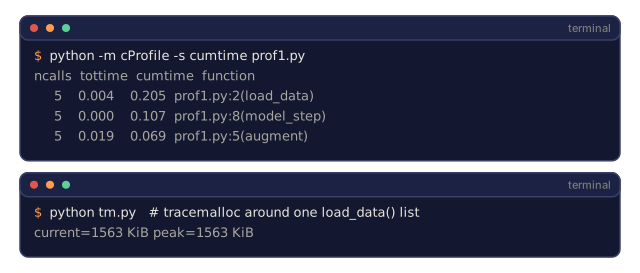
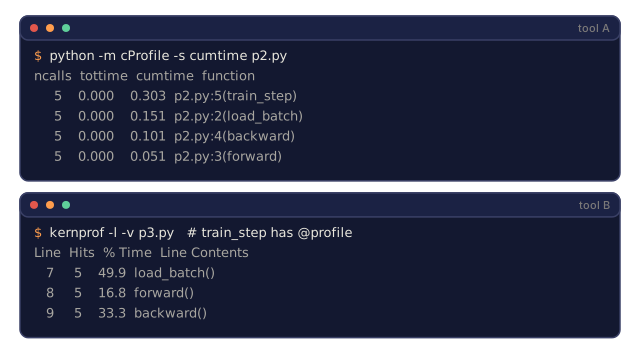
When a manual Timer isn't granular enough:
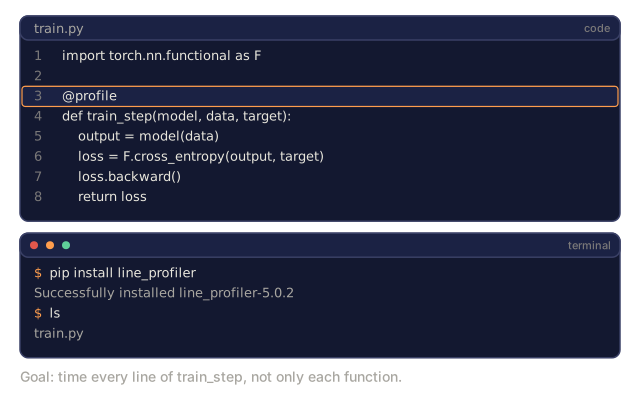
python -m cProfile -s cumtime train.pyThat gives you every function call sorted by cumulative time. When you need to go line-by-line instead of function-by-function:
pip install line_profiler@profile
def train_step(model, data, target):
output = model(data)
loss = F.cross_entropy(output, target)
loss.backward()
return loss
# Run with: kernprof -l -v train.pyPart 6: Memory profiling
CPU memory with tracemalloc
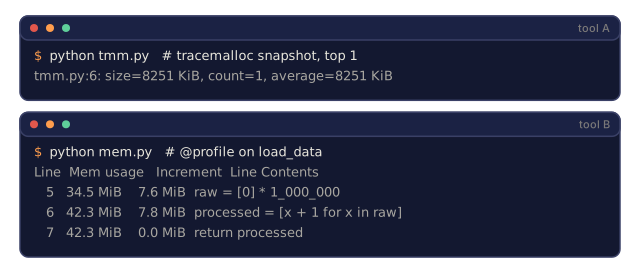
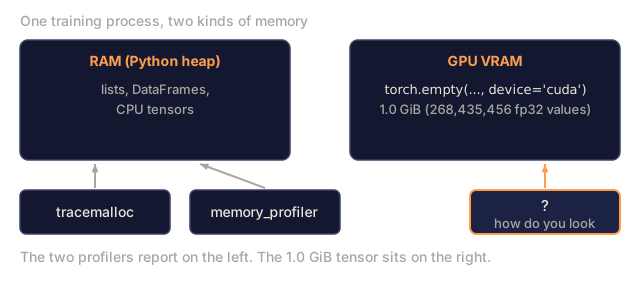
When you need to know which line is eating RAM, not just how much a process holds in total, tracemalloc walks every allocation back to the line that made it.
import tracemalloc

tracemalloc.start()

# your code here
model = build_model()
data = load_dataset()

snapshot = tracemalloc.take_snapshot()
top_stats = snapshot.statistics("lineno")
for stat in top_stats[:10]:
    print(stat)
CPU memory with memory_profiler
For a running total instead of a single snapshot, memory_profiler reports the memory cost of each line as the function executes.
pip install memory_profilerfrom memory_profiler import profile
@profile
def load_data():
raw = read_csv("data.csv") # watch memory jump here
processed = preprocess(raw) # and here
return processedRun it with python -m memory_profiler your_script.py for a line-by-line memory report.
GPU memory with PyTorch
Neither of the above sees GPU memory, so check that directly through PyTorch's own allocator.
import torch

if torch.cuda.is_available():
    print(torch.cuda.memory_summary())

    print(f"Allocated: {torch.cuda.memory_allocated() / 1e9:.2f} GB")
    print(f"Cached: {torch.cuda.memory_reserved() / 1e9:.2f} GB")
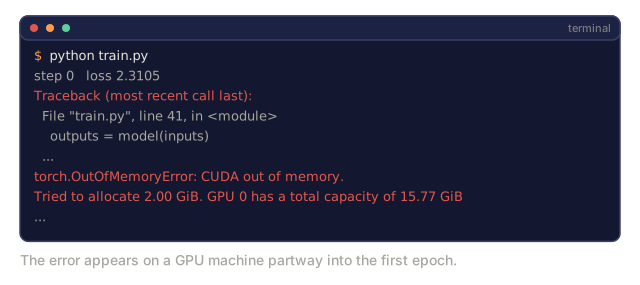
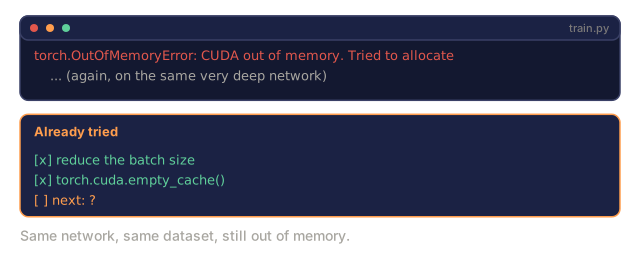
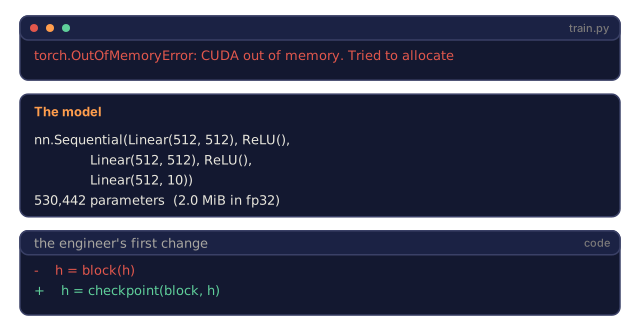
When you hit an OOM (the GPU couldn't find room for the tensor you tried to allocate), work down this list in order:
- Reduce batch size. It's always the first thing to try
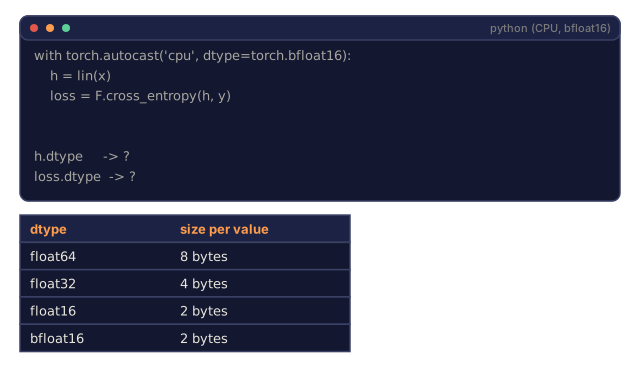
torch.cuda.empty_cache()to free cached memorydel tensorfollowed bytorch.cuda.empty_cache()for large intermediates- Mixed precision (
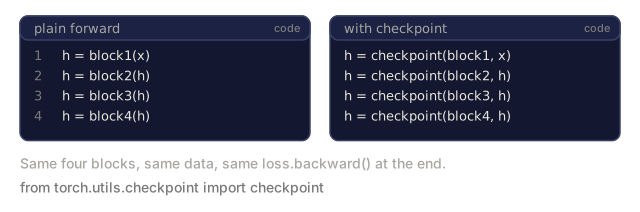
torch.cuda.amp), doing most of the math in a lower-precision format, to roughly halve memory usage - Gradient checkpointing, trading extra recomputation for lower peak memory by not storing every intermediate activation, for very deep models
Part 7: The bugs you'll actually hit
Shape mismatch
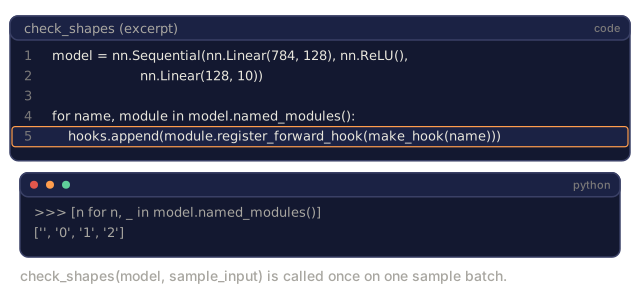
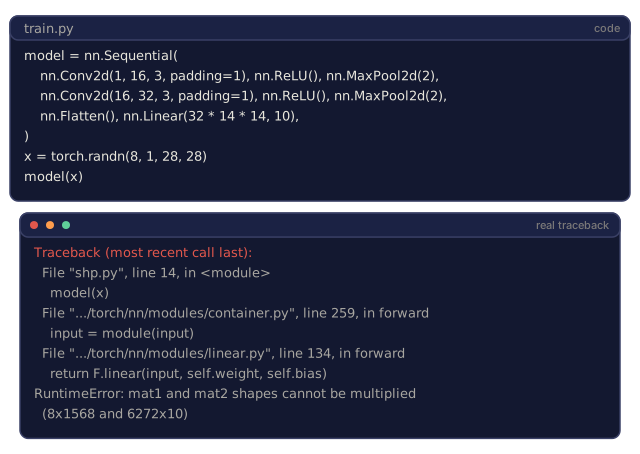
This is the most common bug there is. A tensor comes in shaped [batch, features] when the model is expecting [batch, channels, height, width]. Instead of guessing where the mismatch happens, hook every module and print the transformation:
def check_shapes(model, sample_input):
    print(f"Input: {sample_input.shape}")
    hooks = []

    def make_hook(name):
        def hook(module, inp, out):
            in_shape = inp[0].shape if isinstance(inp, tuple) else inp.shape
            out_shape = out.shape if hasattr(out, "shape") else type(out)
            print(f"  {name}: {in_shape} -> {out_shape}")
        return hook

    for name, module in model.named_modules():
        hooks.append(module.register_forward_hook(make_hook(name)))

    with torch.no_grad():
        model(sample_input)

    for h in hooks:
        h.remove()
Run this once, with one sample batch, before you spend more than five minutes on a training run. It maps every shape transformation in the model in one shot.
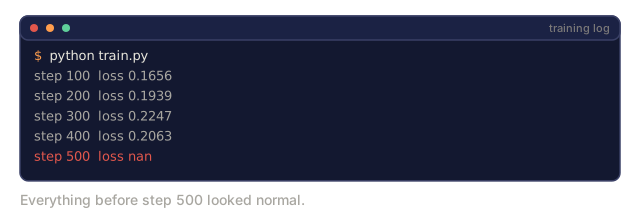
NaN loss
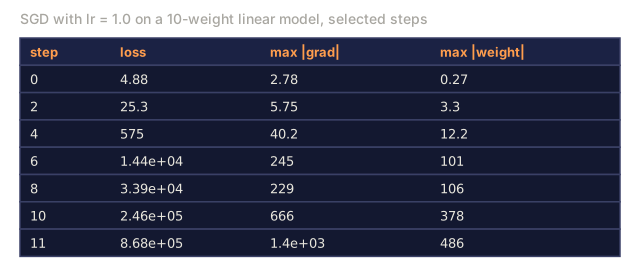
NaN loss means something exploded, and it's almost always one of: learning rate too high, division by zero in a custom loss, log of zero or a negative number, or exploding gradients in an RNN. The log-of-zero case shows up more than people expect because loss functions like cross-entropy take the log of a predicted probability. If that probability rounds down to exactly zero, its log is negative infinity, and negative infinity flowing backward through the network is one of the most common routes to NaN.
def detect_nan(model, loss, step):
    if torch.isnan(loss):
        print(f"NaN loss at step {step}")
        for name, param in model.named_parameters():
            if param.grad is not None:
                if torch.isnan(param.grad).any():
                    print(f"  NaN gradient in {name}")
                if torch.isinf(param.grad).any():
                    print(f"  Inf gradient in {name}")
        return True
    return False
Data leakage
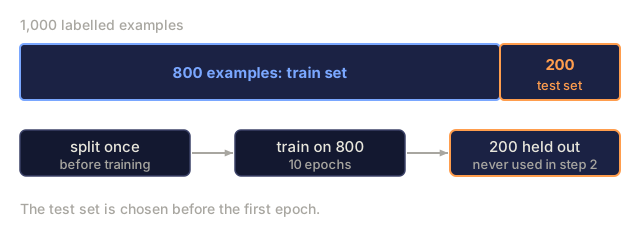
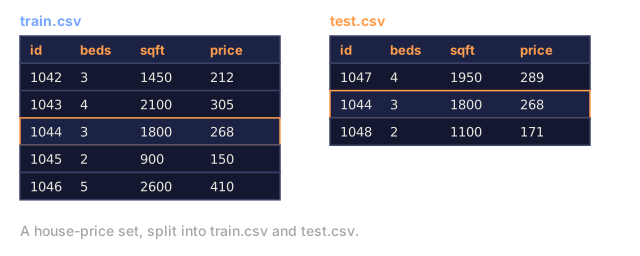
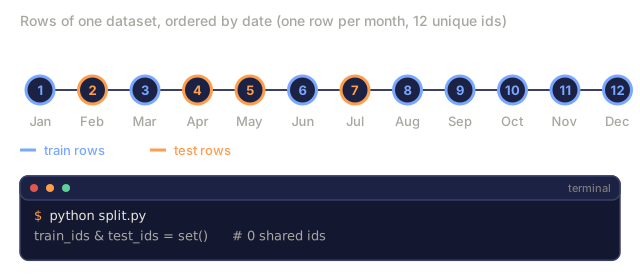
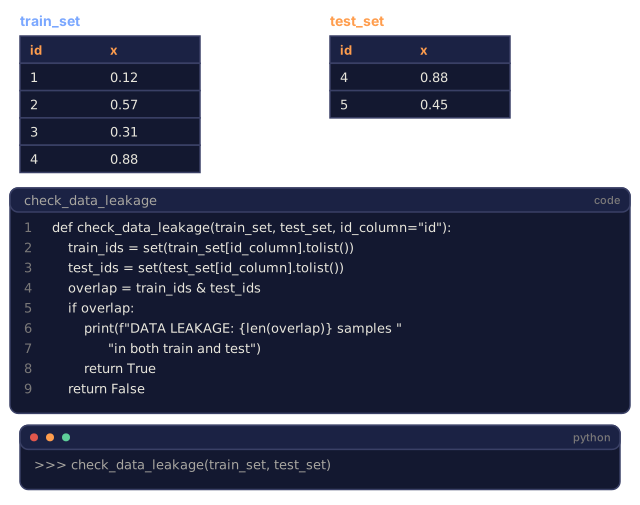
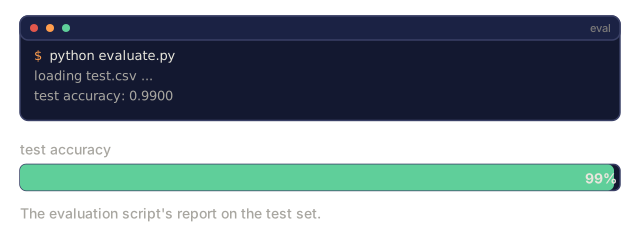
If your model just hit 99% accuracy on the test set, that's not a win — that's a bug you haven't found yet.
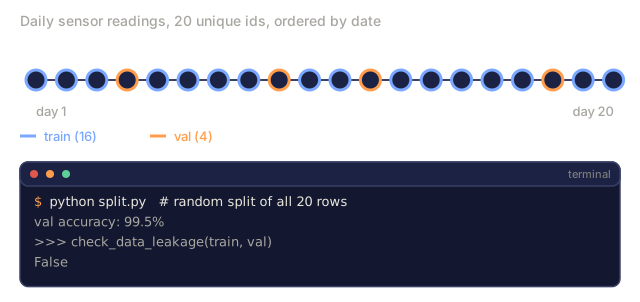
def check_data_leakage(train_set, test_set, id_column="id"):
    train_ids = set(train_set[id_column].tolist())
    test_ids = set(test_set[id_column].tolist())
    overlap = train_ids & test_ids
    if overlap:
        print(f"DATA LEAKAGE: {len(overlap)} samples in both train and test")
        return True
    return False
Check for temporal leakage too, since future rows can end up predicting the past. Sort by timestamp before you split, every time.
Wrong device
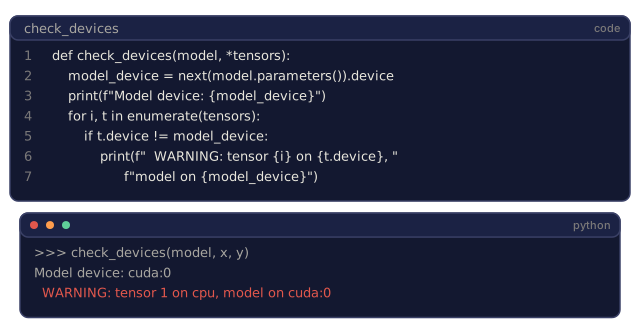
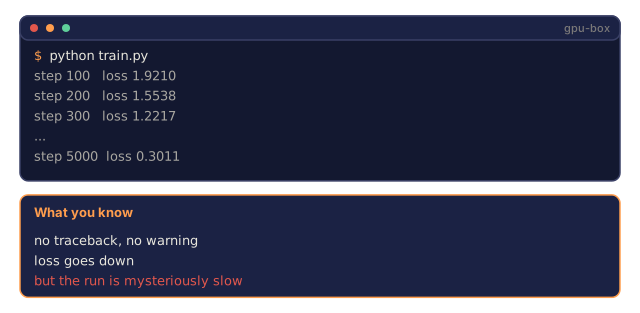
Mixing CPU and GPU tensors usually throws a clear runtime error. The sneakier version is when one tensor silently stays on CPU while everything else runs on GPU — no crash, just a training run that's mysteriously slow.
def check_devices(model, *tensors):
    model_device = next(model.parameters()).device
    print(f"Model device: {model_device}")
    for i, t in enumerate(tensors):
        if t.device != model_device:
            print(f"  WARNING: tensor {i} on {t.device}, model on {model_device}")
Part 8: TensorBoard, once the small stuff is ruled out
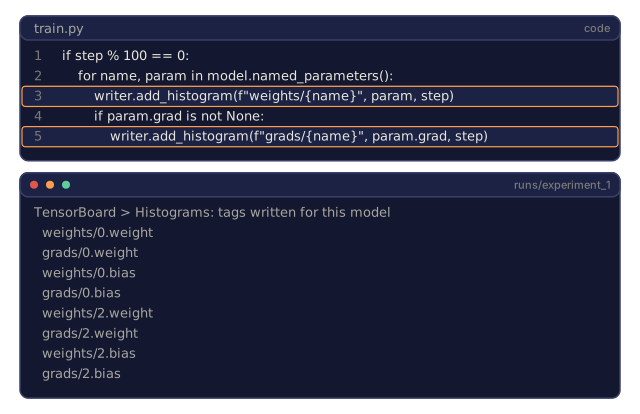
Once you've ruled out the level 1 and 2 bugs above, TensorBoard earns its keep, because it shows you what's happening inside training over time, not just at one step.
pip install tensorboardfrom torch.utils.tensorboard import SummaryWriter
writer = SummaryWriter("runs/experiment_1")
for step in range(num_steps):
loss = train_step(model, batch)
writer.add_scalar("loss/train", loss.item(), step)
writer.add_scalar("lr", optimizer.param_groups[0]["lr"], step)
if step % 100 == 0:
for name, param in model.named_parameters():
writer.add_histogram(f"weights/{name}", param, step)
if param.grad is not None:
writer.add_histogram(f"grads/{name}", param.grad, step)
writer.close()Launch it:
tensorboard --logdir=runsWhat the curves are telling you:
- Loss not decreasing: learning rate too low, or an architecture problem
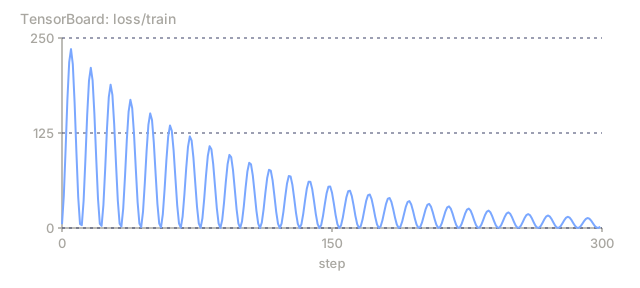
- Loss oscillating wildly: learning rate too high
- Loss goes to NaN: numerical instability, see the NaN section above
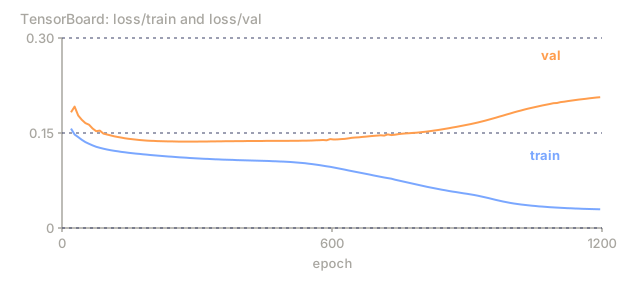
- Train loss down, val loss up: overfitting
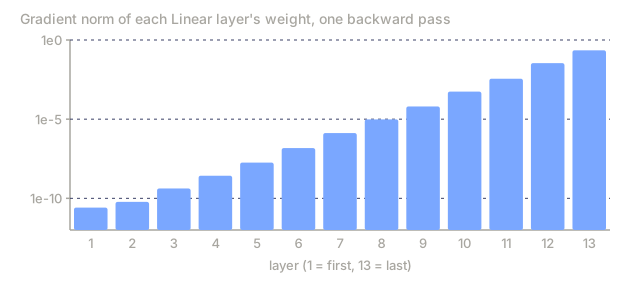
- Weight histograms collapsing to zero: vanishing gradients
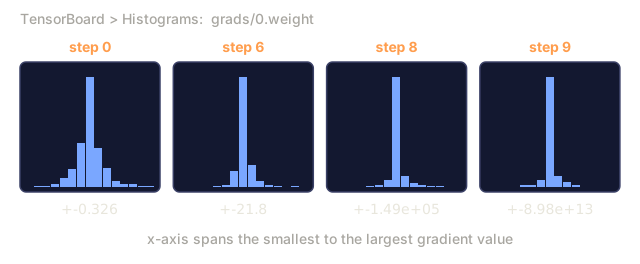
- Gradient histograms exploding: you need gradient clipping
Take the overfitting row as a worked example, since it's the one people misread most often. Plot both curves and train loss keeps falling in a smooth line for the whole run. Val loss follows it down at first, flattens out around the middle of training, then turns and starts climbing while train loss is still dropping. That specific shape, not just "val loss is higher than train loss", is what overfitting looks like: the model is still finding ways to reduce error on examples it has already memorized, and those tricks stop transferring to examples it hasn't seen. The moment val loss turns upward is your signal to stop training, well before train loss tells you anything is wrong.
Part 9: The VS Code debugger
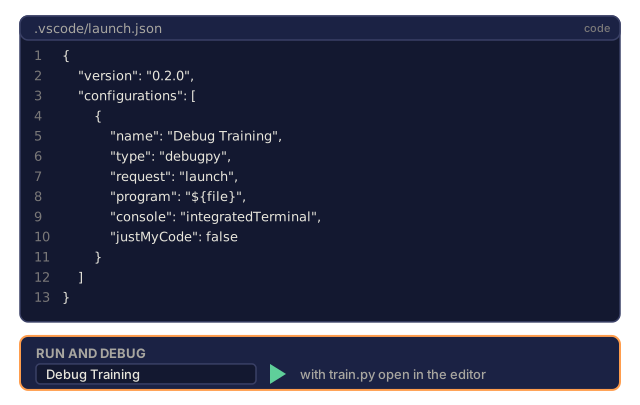
For interactive work, wire up a launch.json:
{
    "version": "0.2.0",
    "configurations": [
        {
            "name": "Debug Training",
            "type": "debugpy",
            "request": "launch",
            "program": "${file}",
            "console": "integratedTerminal",
            "justMyCode": false
        }
    ]
}
Set breakpoints in the gutter, inspect tensor properties in the Variables pane, and run arbitrary expressions in the Debug Console mid-execution. This is where I reach for stepping through a data preprocessing pipeline transformation by transformation, rather than breakpoint() in the terminal.
![A Python prompt where a tensor [1.0, nan, 3.0] is created, printed, and checked with isnan(), with real outputs. Below, a training log whose loss reads nan at step 500.](/quiz-visuals/00-setup-and-tooling/07-debugging-and-profiling-ai-code/n3.svg)
![Two terminals: a print-based training run over ssh that prints two step lines and then drops with client_loop: send disconnect: Broken pipe, and a logging-based version whose real formatted line carries a timestamp and [INFO] level: 2026-10-07 02:14:09,512 [INFO] step 100 loss 1.9200.](/quiz-visuals/00-setup-and-tooling/07-debugging-and-profiling-ai-code/check-2.svg)
![Hand-written cross-entropy: softmax of logits [200.0, 0.0] printed as tensor([1., 0.]), then the highlighted line loss = -torch.log(p[1]) for target class 1, then loss.backward().](/quiz-visuals/00-setup-and-tooling/07-debugging-and-profiling-ai-code/n15.svg)
![The lesson's Timer class with __init__, __enter__ and __exit__ methods and its print line, followed by a with Timer('forward pass') block and the printed line [forward pass] 0.0412s.](/quiz-visuals/00-setup-and-tooling/07-debugging-and-profiling-ai-code/n17.svg)
Use It
Here's the order I actually run through, and it catches most AI bugs before they cost you anything:
- Before training: run
check_shapeson a sample batch. Confirm the dimensions match what you think they are, before you've spent a single GPU-second. - First 10 steps:
debug_printon loss, outputs, and gradients. Nothing should be NaN, and the ranges should look sane. - During training: log loss, learning rate, and gradient norms. Let TensorBoard do the visualizing.
- When something breaks:
breakpoint()right at the failure point. Inspect tensors interactively instead of guessing. - For performance: time data loading against forward and backward passes. Only profile memory once you're actually near OOM.
Notice the order: cheap, fast checks first, expensive visual tools last. That's the whole point of the three levels from the Concept section.
Ship It
Run the debugging toolkit:
python code/debug_tools.pySee outputs/prompt-debug-ai-code.md for a prompt you can hand to an LLM to help triage AI-specific bugs (NaN loss, shape errors, silent training failures, OOM) instead of starting from a blank terminal every time.
This is the last lesson in the phase, and I think it's the one people skip the fastest. Everyone wants to get to the model. But every hour I've lost to AI code, I've lost to a silent bug, never a loud one. Silent bugs are the ones that don't respect your setup: the fancy compute, the clean shell, the well-configured editor from the earlier lessons in this phase don't save you from a tensor quietly sitting on the wrong device. The tools here are cheap and unglamorous — a print statement, a conditional breakpoint, a five-line shape hook — and that's exactly why they catch 80% of what actually goes wrong before you ever need to open TensorBoard.
Exercises
- Run
debug_tools.pyand read through each section's output. Modify the dummy model to introduce a NaN (hint: divide by zero in the forward pass) and watch the detector catch it. - Profile a training loop with
cProfileand identify the slowest function. - Use
tracemallocto find which line in your data loading pipeline allocates the most memory. - Set up TensorBoard for a simple training run and identify whether the model is overfitting.
- Use
breakpoint()inside a training loop. Practice inspecting tensor shapes, devices, and gradient values from the debugger prompt.
Key Terms
| Term | What people say | What it actually means |
|---|---|---|
| NaN | "Not a number" | An invalid floating-point result that poisons every downstream computation |
| OOM | "Out of memory" | Not enough free VRAM for the tensor you tried to allocate |
| Mixed precision | "Half precision" | Most math in fp16/bf16 for speed and memory, fp32 only where precision matters |
| Gradient checkpointing | "The recompute trick" | Recompute activations during the backward pass instead of storing all of them |
| Forward hook | "A callback" | A function PyTorch fires after a module's forward pass, no code changes needed |
| tracemalloc | "Memory tracer" | Stdlib module that tracks which line allocated each block of memory |
| Vanishing gradient | "Gradients disappear" | Gradients shrink toward zero across many layers, so early layers barely update |
| Exploding gradient | "Gradients blow up" | Gradients grow uncontrollably during backprop, sending weights to huge or NaN values |
| Data leakage | "Cheating" | Test-set information sneaks into training and inflates accuracy that won't hold in production |
| Conditional breakpoint | "Smart breakpoint" | A breakpoint() guarded by an if, firing only when something's actually wrong |
Code
- debug_tools.py (python, 311 lines)