Version Control
Git is not a nice-to-have you bolt on later. It's the only reason a bad edit costs you thirty seconds instead of your whole afternoon.
Learning Objectives
- Configure git identity and run the daily loop of add, commit, push
- Branch off for experiments so you can wreck things without wrecking main
- Write a `.gitignore` that keeps model checkpoints and other giant binaries out of the repo
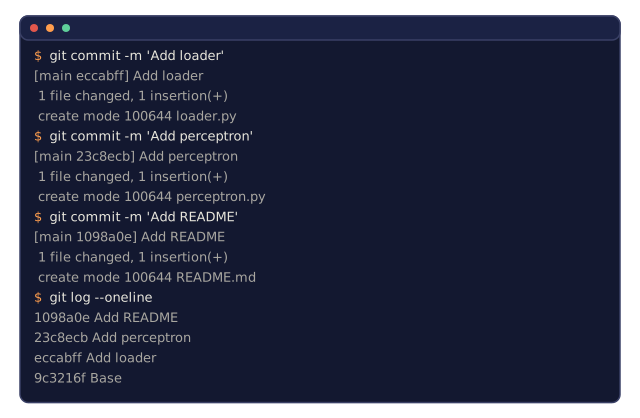
- Read `git log` to see how a project actually got built, one commit at a time
The Problem
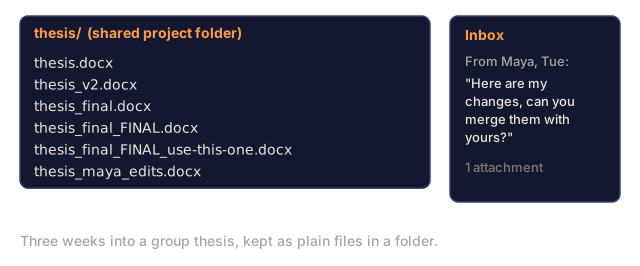
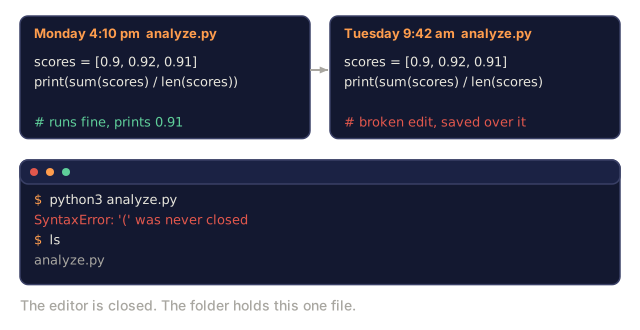
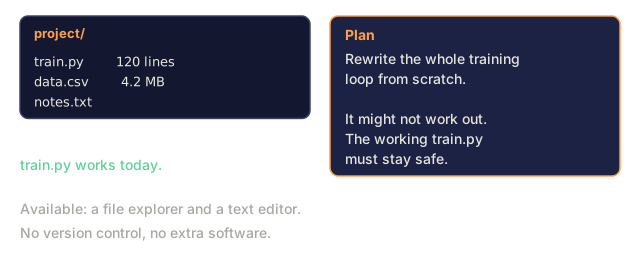
You're about to write code across 20 phases of this course. Some of it will work. Some of it will silently break something that worked yesterday. Without version control, "undo" stops existing the moment you close your editor, and there's no way to hand your code to anyone else, including future-you, six lessons from now, wondering what changed.
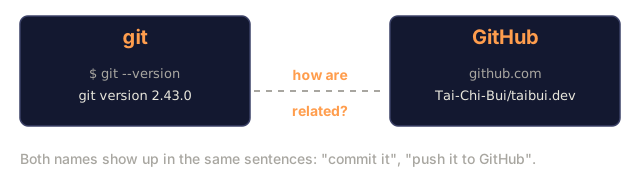
Git solves the first problem: it's the tool that remembers every version of every file, and it does that entirely on your own machine, no internet connection required. GitHub solves a different problem, and it is not the same thing as git even though people talk about them like they are. GitHub is a company that hosts a copy of your git history online, so other people (and other computers) can get to it. You'll hear "push it to GitHub" and "back it up to the cloud" used interchangeably, but git already did the hard part the moment you committed; GitHub is just the parking lot everyone agreed to park in. This lesson covers exactly what you need for this course, nothing more. I'm not going to make you learn rebase before you've written your first perceptron.
![Terminal showing git remote -v with the name origin and an https GitHub URL for fetch and push, followed by the [remote "origin"] section of .git/config.](/quiz-visuals/00-setup-and-tooling/02-version-control/n4.svg)
The Concept

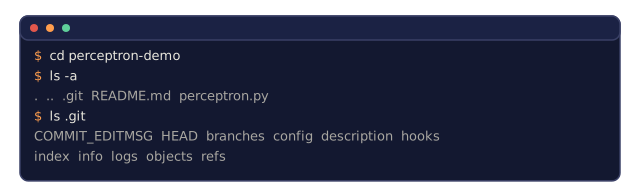
Start with what a repository actually is, because everything else in this lesson sits on top of it. A repo is just a regular folder on your computer, except git is watching it. The moment you run git init (or clone one that already exists), git starts keeping a private history of every file in that folder, stored in a hidden .git subdirectory. Delete that .git folder and your files are still there, but the entire history is gone. That folder, plus everything git has recorded about it, is the repo.
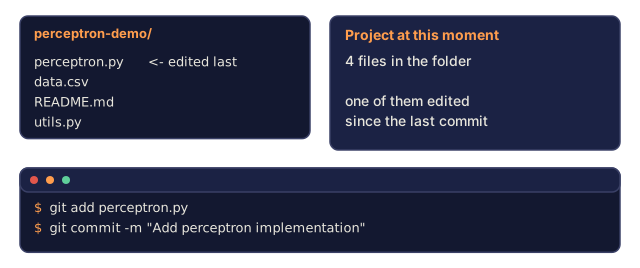
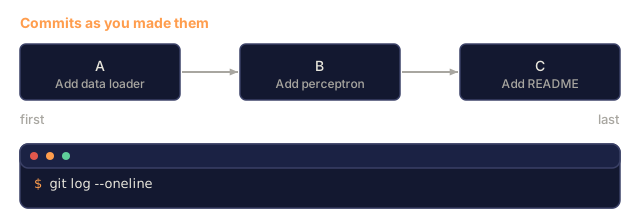
A commit is what that history is made of. Think of a commit as a photograph of your entire project at one instant: every file, exactly as it looked, tagged with a message describing what changed and why. git log is just flipping back through that stack of photographs in order, newest first. A commit is never partial. It captures the whole project state at that moment, not just the one file you happened to be editing.
Three things to remember, and honestly, three things is the whole mental model:
- Save often (
git commit) - Push to remote (
git push) - Branch for experiments (
git checkout -b experiment)
Everything else git can do is an elaboration on those three moves.
Build It
Step 1: Configure git
Every commit needs an author, so before anything else, tell git who you are. It only takes once per machine:
git config --global user.name "Your Name"
git config --global user.email "[email protected]"
That stamps your name on every commit you make from here on.
Step 2: The daily workflow
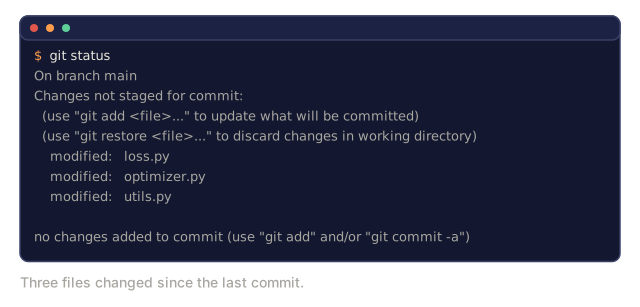
git statusRun that after editing a file and you'll see something like this:
On branch main
Changes not staged for commit:
  (use "git add <file>..." to update what will be committed)
	modified:   file.py

no changes added to commit (use "git add" and/or "git commit -a")
That's git telling you exactly what it sees: which branch you're on, and which files changed since your last commit.
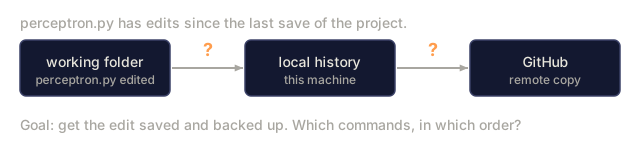
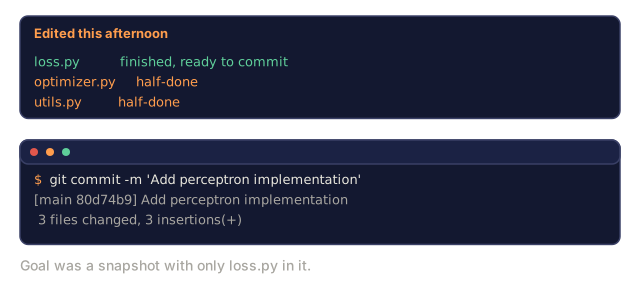
Before you run the next command, it helps to know why staging is its own step instead of git just saving everything that changed: git add lets you choose exactly which edits go into the next snapshot. Touch three files but only one is actually ready? Add that one and commit it, leaving the other two for later. Skip staging and every commit would be forced to include everything that's currently different, whether it belongs together or not.
Now stage, commit, and push:
git add file.py
git commit -m "Add perceptron implementation"
git push origin main
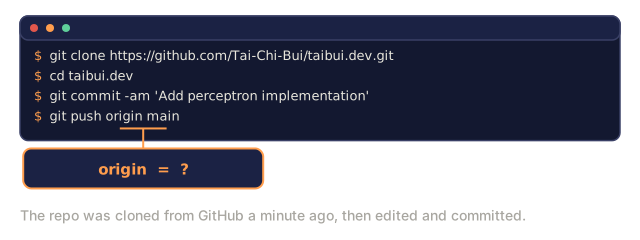
That four-command sequence, status, add, commit, push, is 90% of what you'll type all course: status tells you what changed, add stages it, commit snapshots it with a message, push backs it up to GitHub. (origin is just git's name for the remote you cloned from or first pushed to; main is the branch you're pushing.)
Step 3: Branching for experiments
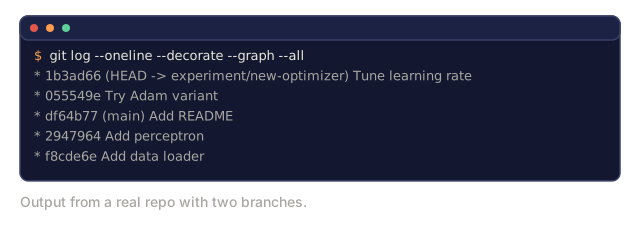
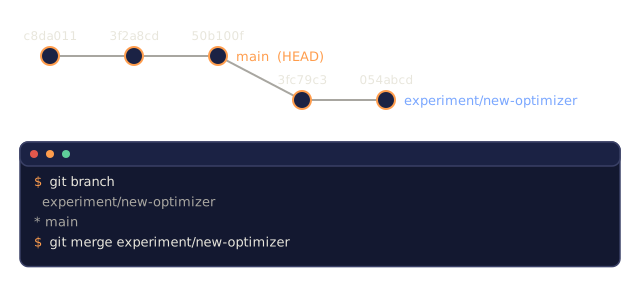
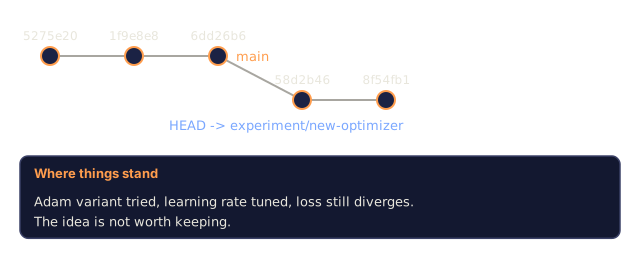
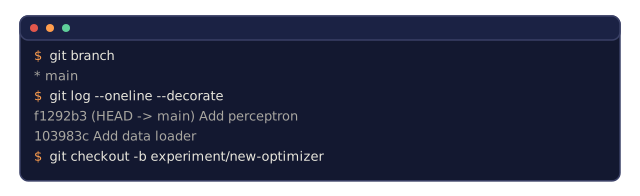
Branches are how you try an idea without risking main: switch to a new one, make your changes, and only bring them back once you know they work.
git checkout -b experiment/new-optimizer

# ... make changes, commit ...

git checkout main
git merge experiment/new-optimizer
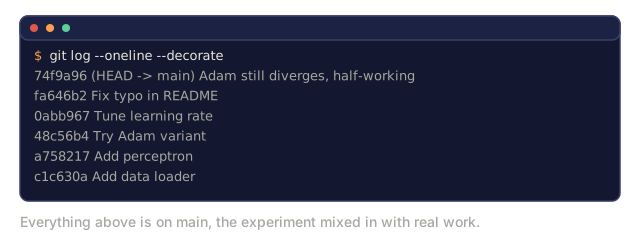
A branch costs nothing to create. If the experiment doesn't pan out, delete the branch and main never knew it happened.
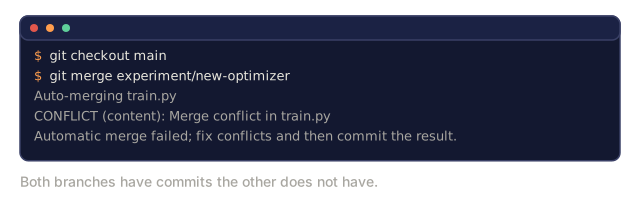
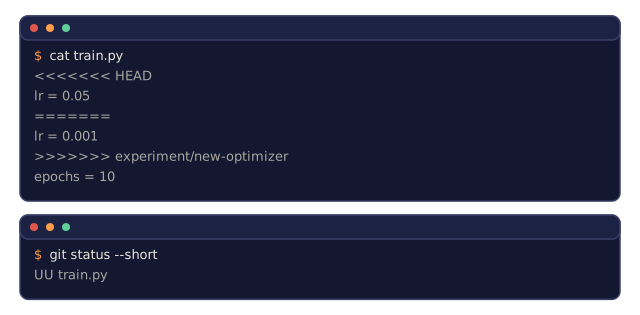
Sometimes git merge can't combine the two branches automatically, usually because the same lines of the same file changed on both sides. That's a merge conflict, and it looks worse than it is. Git stops, tells you which file has the problem, and marks both versions directly inside that file:
<<<<<<< HEAD
your version of the line
=======
the other branch's version of the line
>>>>>>> experiment/new-optimizer
To fix it: open the file, decide which lines you actually want (one side, the other, or a mix), delete the <<<<<<<, =======, and >>>>>>> markers, then run git add on the file and git commit to finish the merge. Nothing is lost. Git is just asking you to make a call it can't make on its own.
Step 4: Keeping large files out
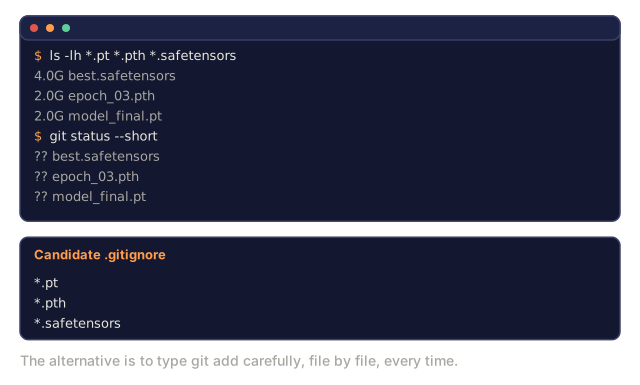
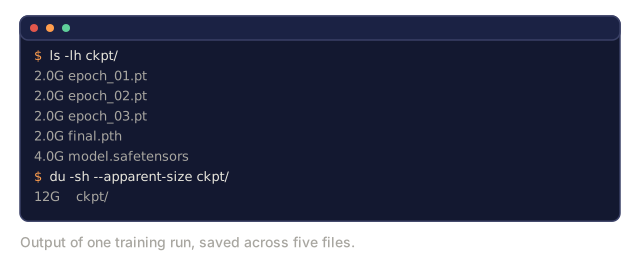
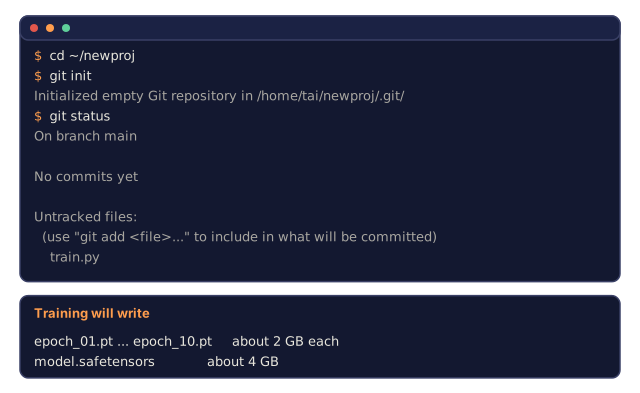
Git tracks every version of a file forever, which is exactly the wrong behavior for a 2GB model checkpoint: commit it once, re-save it ten times, and your repo now carries ten 2GB copies whether you still need them or not. The fix isn't to be careful about what you commit, it's to tell git never to look at those files at all.
A .gitignore file at the root of your repo does that: one pattern per line, and anything matching it disappears from git status and never gets staged by accident.
*.pt
*.pth
*.safetensors
__pycache__/
.env
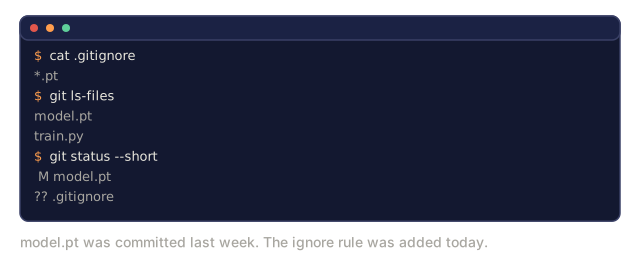
Create that file once at the start of a project and forget about it. One catch: if a file was already tracked before you added it to .gitignore, the ignore rule won't touch it retroactively. Run git rm --cached <file> once to untrack it, then commit that removal.
Step 5: Working with this course repo
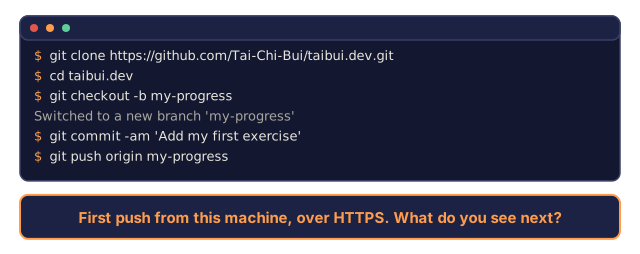
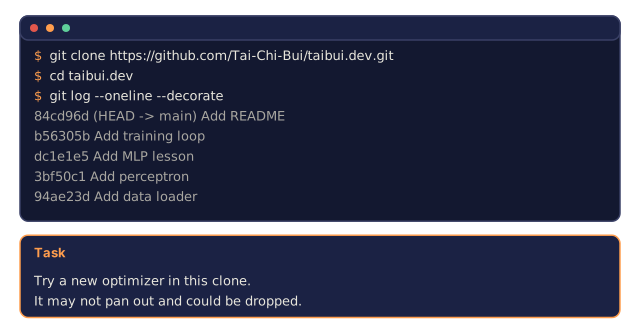
git clone https://github.com/Tai-Chi-Bui/taibui.dev.git
cd taibui.dev

git checkout -b my-progress
# work through lessons, commit your code
git push origin my-progress
The first time you push, GitHub won't just accept your username and password anymore. It will ask you to authenticate, either by pasting a personal access token where it prompts for a password, or by setting up an SSH key so it recognizes your machine automatically. Lesson 5 walks through generating an SSH key, so treat this as a heads-up rather than something to solve right now.
![Terminal running git config --global user.name and user.email, then cat ~/.gitconfig showing a [user] section with name = Your Name and email = you@example.com.](/quiz-visuals/00-setup-and-tooling/02-version-control/check-8.svg)
Use It
For this course, you need exactly these commands:
| Command | When |
|---|---|
git clone | Get the course repo |
git add + git commit | Save your work |
git push | Back it up to GitHub |
git checkout -b | Try something without breaking main |
git log --oneline | See what you've done |
That's the whole list. You don't need rebase, cherry-pick, or submodules for this course, and I'd argue most people don't need them for most jobs either. Learn those five commands cold before you reach for anything fancier.
The habit that actually paid off for me wasn't any git trick: branching before I was confident, not after. If you wait until you're sure an experiment is a good idea to give it a branch, you've already committed the bad version to main and now you're untangling it. Branch first, decide later. Worst case you delete a branch. That's the whole cost.
Exercises
- Clone this repo, create a branch called
my-progress, make a file, commit it, push it - Write a
.gitignorethat excludes model checkpoint files (.pt,.pth,.safetensors) - Read the commit history of this repo with
git log --onelineand see how the lessons were actually built up over time
Key Terms
| Term | What people say | What it actually means |
|---|---|---|
| Commit | "Saving" | A snapshot of your entire project at a point in time |
| Branch | "A copy" | A pointer to a commit that moves forward as you work |
| Merge | "Combining code" | Taking changes from one branch and applying them to another |
| Remote | "The cloud" | A copy of your repo hosted somewhere else (GitHub, GitLab) |