Where You Write and Run Code
Two windows, one job each: the editor is where code has to work every time, the notebook is where an idea gets to fail cheaply before it earns the right to become code.
Learning Objectives
- Install VS Code with the extensions and settings that matter for AI work: Python, Pylance, Jupyter, GitLens, Remote SSH, format-on-save, and type checking
- Launch a notebook (JupyterLab, classic Notebook, or VS Code's Jupyter extension) and use magic commands (`%timeit`, `%%time`, `%matplotlib inline`) to benchmark and visualize inline
- Apply the "explore in notebooks, ship in scripts" rule, and recognize the common notebook traps: out-of-order execution, hidden state, memory leaks
- Set up Remote SSH to work on a GPU box as if it were local, and weigh editor alternatives (Cursor, Windsurf, Neovim) for AI work
The Problem
You'll spend thousands of hours doing two different jobs, and they fail in opposite ways if you use the wrong tool. One job is writing code that has to work every time, top to bottom, with no human standing over it. The other is exploring an idea that might not work at all, and finding that out as fast as possible. The editor is built for the first job. The notebook is built for the second. Mix them up and you pay for it daily.
Skip a real editor setup and every session costs you friction: no autocomplete, no type hints, no inline errors, manual formatting, a clunky terminal workflow every time you SSH into a GPU box. The right setup takes 20 minutes. Skipping it costs you 20 minutes every day, forever.
Skip notebooks entirely and you're doing math homework without scratch paper. Every AI paper, tutorial, and Kaggle competition assumes you have one open. Notebooks let you run code in pieces, see outputs inline, and mix code with explanation. But notebooks have real traps of their own, and people use them for everything, including the things they're terrible at: pipelines, reusable utilities, anything that has to run unattended. Get that boundary wrong and you'll spend an afternoon debugging a notebook that "worked five minutes ago."
Know which tool you're in, and why, and both problems disappear.
![A small Python file messy.py with irregular spacing, such as def load( path ) and data=[ 1,2,3 ], feeding into a box labelled formatter whose result is a question mark.](/quiz-visuals/00-setup-and-tooling/05-where-you-write-and-run-code/n2.svg)
The Concept
An editor set up for AI work needs five things: language support, type checking, in-editor notebook execution, remote access to wherever the GPU actually lives, and formatting/linting that runs itself so you never think about it.

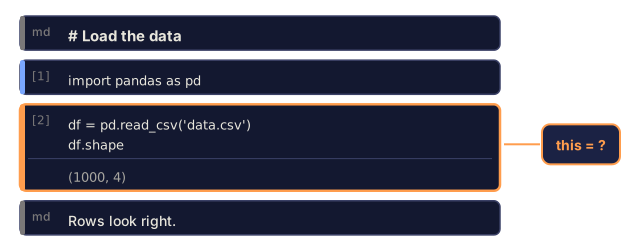
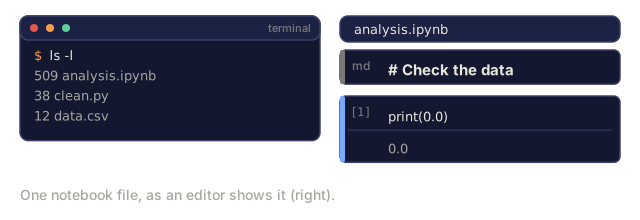
A notebook is a different shape entirely: not a file you run, but a list of cells, each one either code or markdown, that you can execute in whatever order you click.

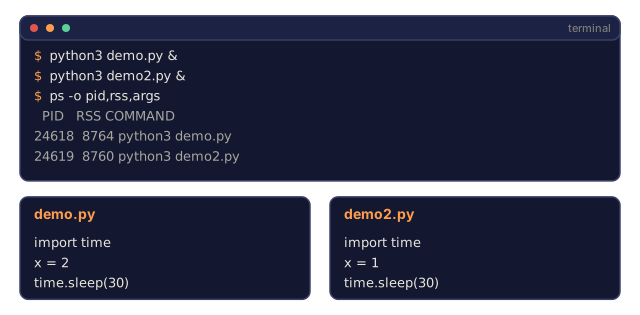
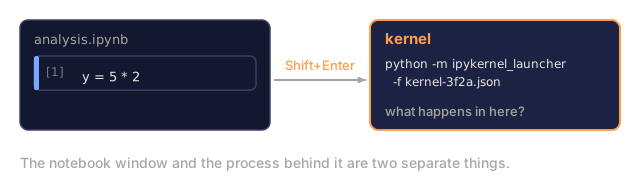
Behind every notebook is a kernel: a Python process running in the background. A process, in this sense, is just a running instance of a program, so "a Python process" means an actual running copy of the Python interpreter, sitting there in memory with the value of every variable you've set so far. Run a cell and it ships the code to that kernel, which executes it and sends back the result. Every cell in the notebook shares that one kernel, so variables persist between cells in whatever order you happened to run them, not the order they appear on the page.

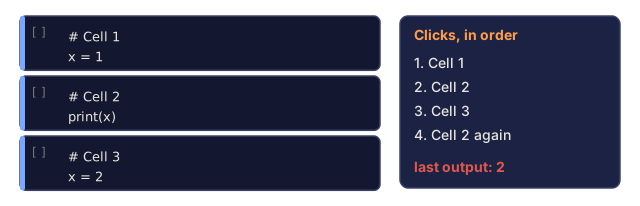
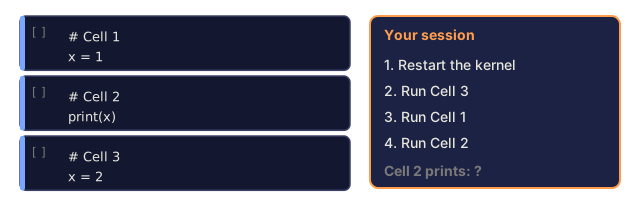
That "whatever order you ran them" part is both the entire superpower of a notebook and its favorite way to bite you. Here's what it looks like in practice. Say your notebook has three cells, in this order on the page:
# Cell 1
x = 1# Cell 2
print(x)# Cell 3
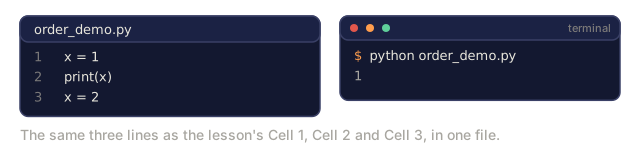
x = 2Run them in page order and Cell 2 prints 1, exactly what it looks like it should print. Now click Cell 1, then Cell 2, then Cell 3, then scroll back up and click Cell 2 again. The kernel still has x = 2 from Cell 3, so this second run of Cell 2 prints 2. Nothing on the page changed. Cell 2 still sits above Cell 3, still reads print(x), but now it prints a value that Cell 3, below it, hasn't "happened" yet according to the page. The kernel remembers your click order, not your scroll order, and the notebook gives you no visual signal that the two have diverged.
A script has no equivalent failure mode: it runs top to bottom every time, or it doesn't run. That asymmetry is the real difference between the two tools, and it's the reason you need both, not just a preference for one.
Build It
Step 1: Install VS Code
VS Code is the recommended editor. Free, runs on every OS, first-class Jupyter notebook support, and an extension ecosystem that covers everything you need for AI work.
Download it from code.visualstudio.com, then verify from the terminal:
code --versionIf code isn't found on macOS, open VS Code, press Cmd+Shift+P, type "Shell Command," and select "Install 'code' command in PATH."
Step 2: Install the extensions that matter
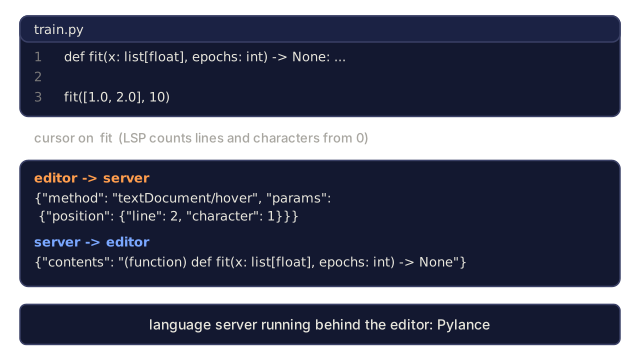
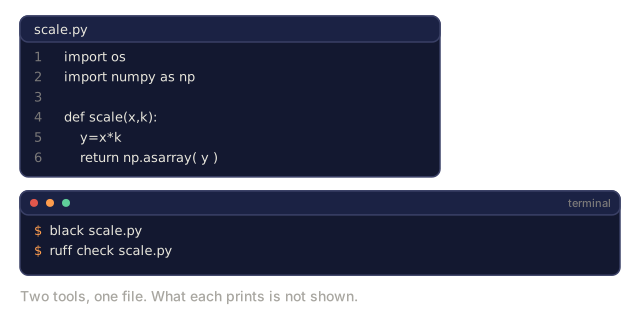
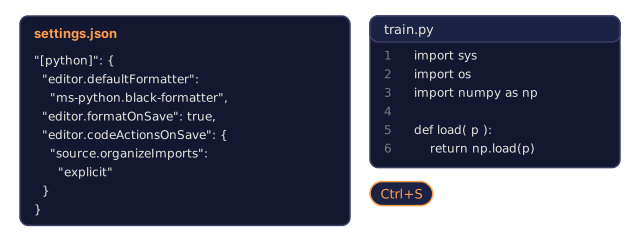
Two of the extensions below are worth naming before you install anything. Pylance is a language server, meaning it's what powers autocomplete and jump-to-definition by actually understanding your code's structure (its functions, classes, and types), not just matching text like a search box would. That's the thing people mean when they say LSP, short for Language Server Protocol: the standard that lets an editor talk to a language server like Pylance. Type checking is Pylance using that structural understanding to flag a wrong argument type before you ever run the code. Black and Ruff do a different job: Black formats your code into one consistent style automatically, and Ruff lints it, meaning it scans for likely bugs and style problems and flags them before you run anything. Together they're why "format on save" (Step 3) means you stop thinking about spacing and indentation entirely.
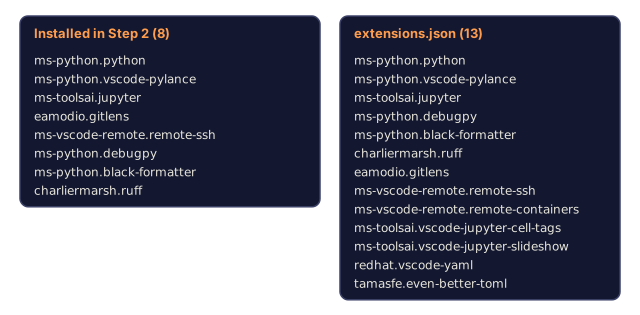
Open the integrated terminal (Ctrl+`` or Cmd+`) and install all eight:
code --install-extension ms-python.python
code --install-extension ms-python.vscode-pylance
code --install-extension ms-toolsai.jupyter
code --install-extension eamodio.gitlens
code --install-extension ms-vscode-remote.remote-ssh
code --install-extension ms-python.debugpy
code --install-extension ms-python.black-formatter
code --install-extension charliermarsh.ruff| Extension | Why |
|---|---|
| Python | Language support, virtual env detection, run/debug |
| Pylance | Fast type checking, autocomplete, import resolution |
| Jupyter | Run notebooks inside VS Code, variable explorer |
| GitLens | See who changed what, inline git blame |
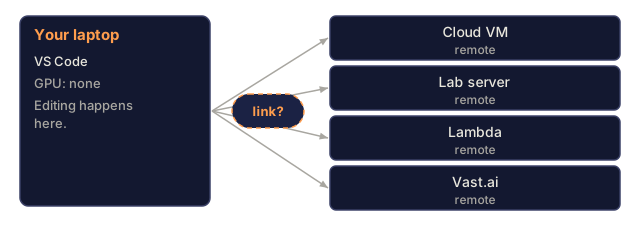
| Remote SSH | Open a folder on a remote GPU box as if it were local |
| Debugpy | Step-through debugging for Python |
| Black Formatter | Auto-format on save, consistent style |
| Ruff | Fast linting, catches common mistakes |
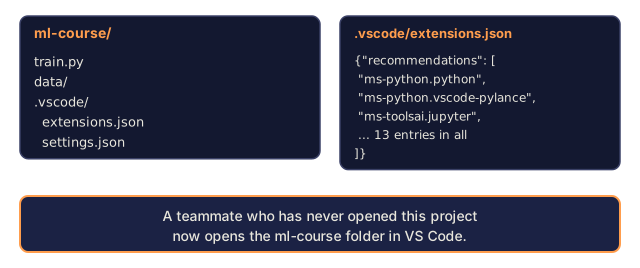
code/vscode/extensions.json in this lesson has the full recommendations list. Open the project folder and VS Code will prompt you to install them.
Step 3: Configure settings
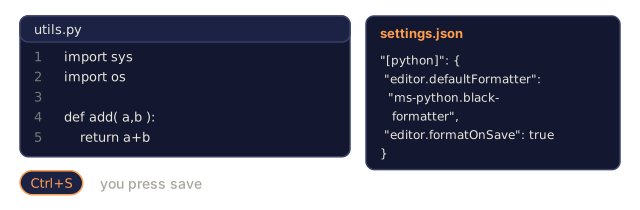
Copy code/vscode/settings.json from this lesson, or set these by hand through Settings > Open Settings (JSON):
{
    "python.analysis.typeCheckingMode": "basic",
    "editor.formatOnSave": true,
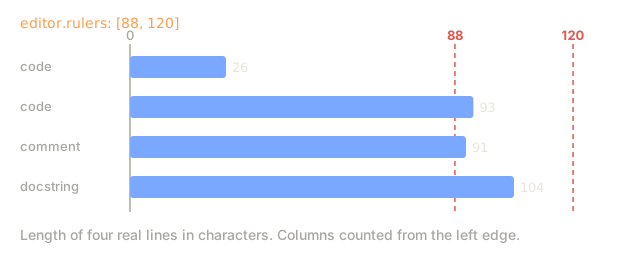
    "editor.rulers": [88, 120],
    "notebook.output.scrolling": true,
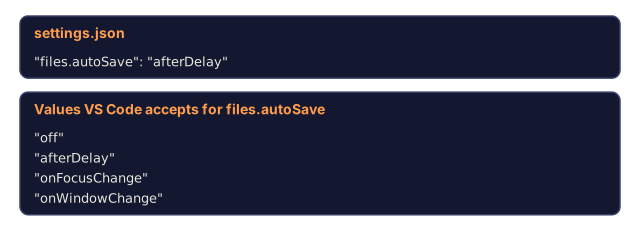
    "files.autoSave": "afterDelay"
}
Why each one earns its place:
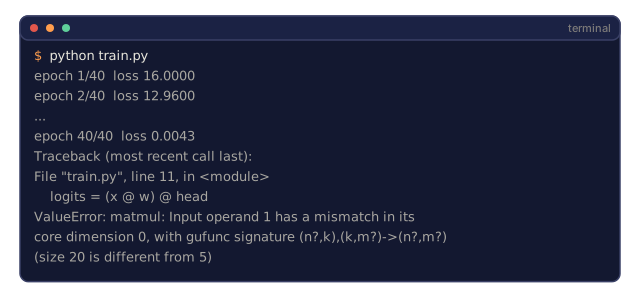
- Type checking on basic catches wrong argument types before you run anything: tensor shape mismatches, wrong API parameters, the stuff you'd otherwise find at minute 40 of a training run.
- Format on save means you never think about formatting again. Black handles it.
- Rulers at 88 and 120 mark where Black wraps (88) and where docstrings and comments start running too long (120).
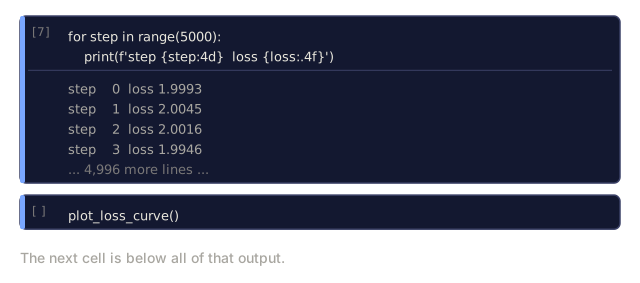
- Notebook output scrolling matters because training loops print thousands of lines. Without it, the output panel explodes.
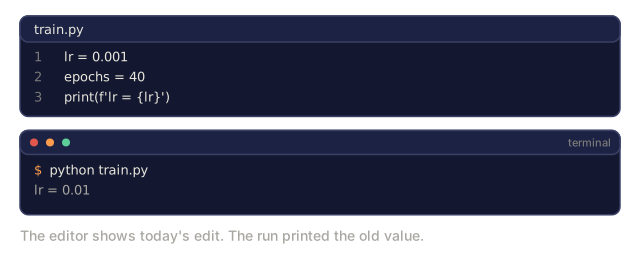
- Auto-save exists because you will forget to save, and your training script will quietly run stale code without it.
Step 4: Terminal integration
The integrated terminal is where you run training scripts, monitor GPUs, and manage environments:
{
    "terminal.integrated.defaultProfile.osx": "zsh",
    "terminal.integrated.defaultProfile.linux": "bash",
    "terminal.integrated.fontSize": 13,
    "terminal.integrated.scrollback": 10000
}| Action | macOS | Linux/Windows |
|---|---|---|
| Toggle terminal | Ctrl+` | Ctrl+` |
| New terminal | Ctrl+Shift+`` | Ctrl+Shift+`` |
| Split terminal | Cmd+\ | Ctrl+\ |
Split terminals earn their keep here: one running your script, one running nvidia-smi -l 1 or watch -n 1 nvidia-smi.
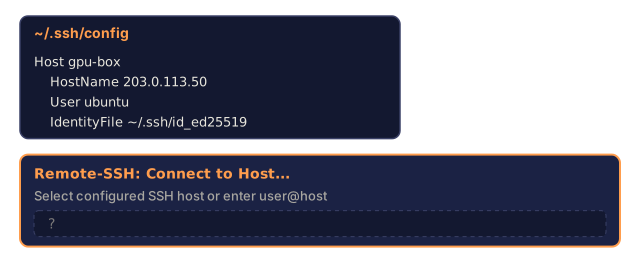
Step 5: Remote SSH, the most important extension for AI work
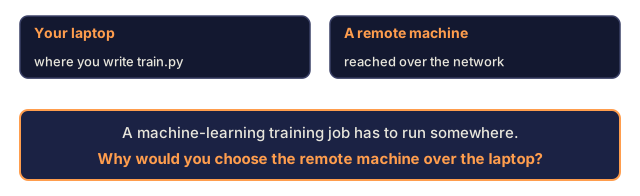
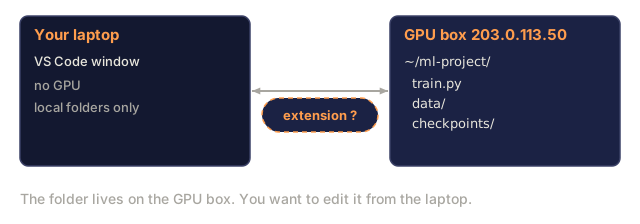
You will train on remote machines: cloud VMs, lab servers, Lambda, Vast.ai. Remote SSH opens the remote filesystem, lets you edit files, run terminals, and debug as if it were all local.
- Install the Remote SSH extension (done in Step 2).
Ctrl+Shift+P(orCmd+Shift+P), type "Remote-SSH: Connect to Host."- Enter
user@your-gpu-box-ip. VS Code installs its server component on the remote machine automatically.
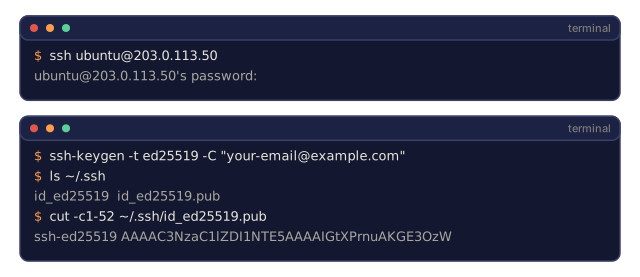
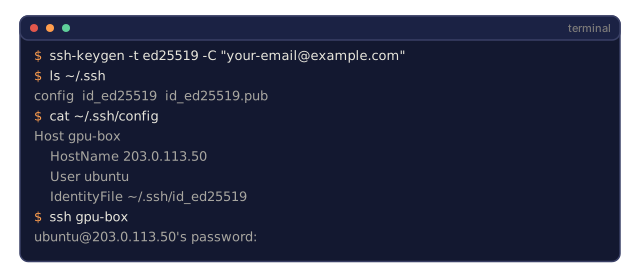
For passwordless access, you'll generate an SSH key pair first. That's two mathematically linked files: a private key that never leaves your machine, and a public key you hand out to any server you want to log into. The server stores your public key and, when you connect, checks that you hold the matching private key. Prove that and you're in, no password typed, ever.
ssh-keygen -t ed25519 -C "[email protected]"
ssh-copy-id user@your-gpu-box-ip
ssh-keygen generates the key pair on your machine (the private key stays in ~/.ssh/, never share it). ssh-copy-id copies the public half to the remote server's list of trusted keys.
Add the host to ~/.ssh/config:
Host gpu-box
    HostName 203.0.113.50
    User ubuntu
    IdentityFile ~/.ssh/id_ed25519
    ForwardAgent yes
Now Remote-SSH: Connect to Host > gpu-box connects instantly.
Step 6: Pick your notebook interface
Three options, one file format:
| Interface | Install | Best for |
|---|---|---|
| JupyterLab | pip install jupyterlab then jupyter lab | Full IDE experience, multiple tabs, file browser, terminal |
| Jupyter Notebook | pip install notebook then jupyter notebook | Simple, lightweight, one notebook at a time |
| VS Code | Jupyter extension (already installed in Step 2) | Already in your editor, git integration, debugging |
All three read and write the same .ipynb file. JupyterLab is the most common in AI work:
pip install jupyterlab
jupyter lab
Step 7: Learn the shortcuts
You operate in two modes: Escape for command mode (blue bar), Enter for edit mode (green bar).
Command mode (most used):
| Key | Action |
|---|---|
Shift+Enter | Run cell, move to next |
A | Insert cell above |
B | Insert cell below |
DD | Delete cell |
M | Convert to markdown |
Y | Convert to code |
Z | Undo cell operation |
Ctrl+Shift+H | Show all shortcuts |
Edit mode:
| Key | Action |
|---|---|
Tab | Autocomplete |
Shift+Tab | Show function signature |
Ctrl+/ | Toggle comment |
Shift+Enter is the one you'll use a thousand times a day. Learn it first.
Step 8: Cell types
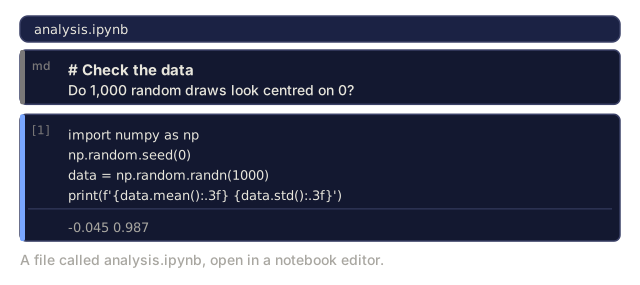
Code cells run Python and show the output:
import numpy as np
data = np.random.randn(1000)
data.mean(), data.std()
Output: (0.0032, 0.9987)
Markdown cells render formatted text, including headers, bold, italic, tables, and images. They also render LaTeX math, handy for writing out formulas like $E = mc^2$. Use them to document what you're doing and why.
Step 9: Magic commands
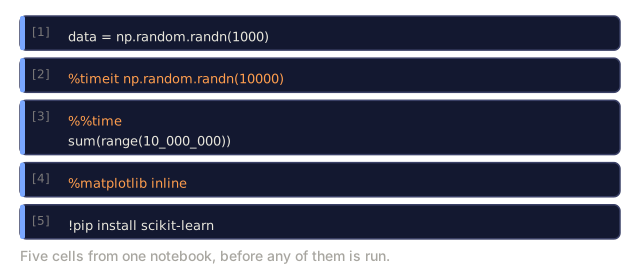
These aren't Python. They're Jupyter-specific commands starting with % (line magic) or %% (cell magic).
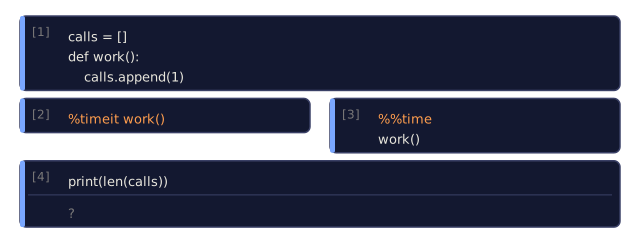
%timeit np.random.randn(10000)Output: 45.2 us +/- 1.3 us per loop
%%time
model.fit(X_train, y_train, epochs=10)
Output: Wall time: 2.34 s
%timeit runs the code many times and averages, so use it for microbenchmarks. %%time runs it once, so use it for training runs.
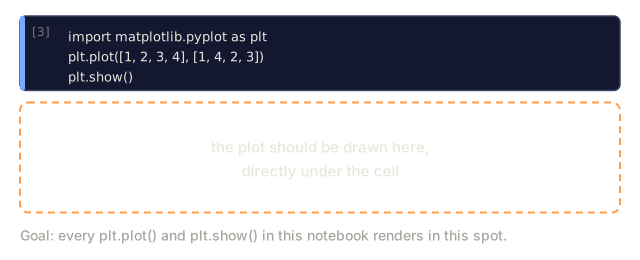
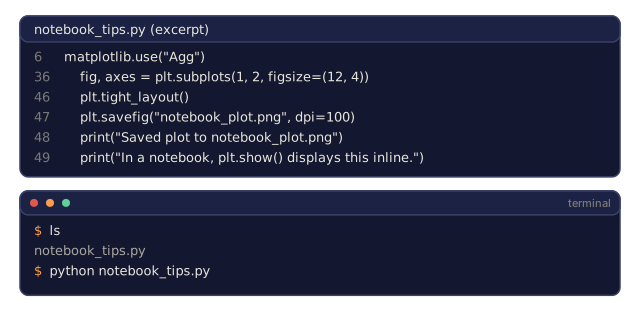
%matplotlib inlineEvery plt.plot() or plt.show() now renders directly in the notebook.
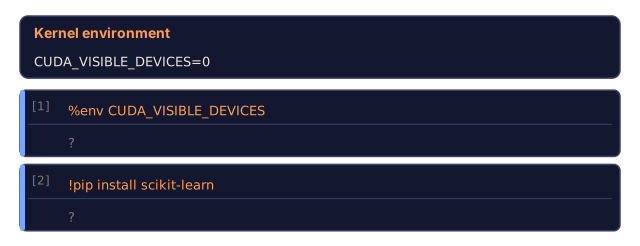
!pip install scikit-learnThe ! prefix runs any shell command, right from a cell.
%env CUDA_VISIBLE_DEVICESThat prints the variable's current value right in the notebook, so you can check which GPU a process can see without opening a separate terminal.
Step 10: Rich display, inline
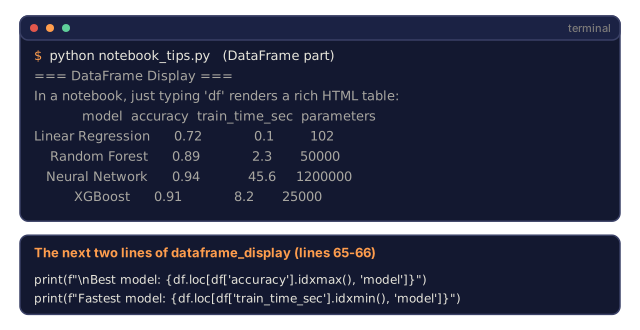
Notebooks auto-display the last expression in a cell, and they render it properly:
import pandas as pd

df = pd.DataFrame({
    "model": ["Linear", "Random Forest", "Neural Net"],
    "accuracy": [0.72, 0.89, 0.94],
    "training_time": [0.1, 2.3, 45.6]
})
df
That renders a formatted HTML table, not a text dump. Same with plots:
import matplotlib.pyplot as plt

plt.figure(figsize=(8, 4))
plt.plot([1, 2, 3, 4], [1, 4, 2, 3])
plt.title("Inline Plot")
plt.show()
The plot appears right below the cell. This is why notebooks dominate AI work. You see the data, the plot, and the code together. For images:
from IPython.display import Image, display
display(Image(filename="architecture.png"))
Step 11: Google Colab
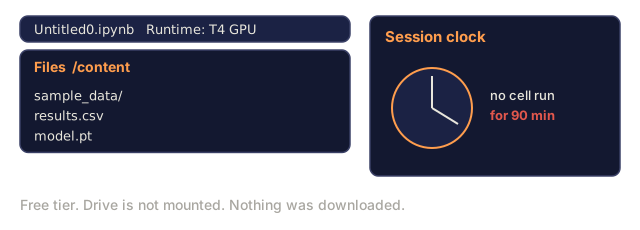
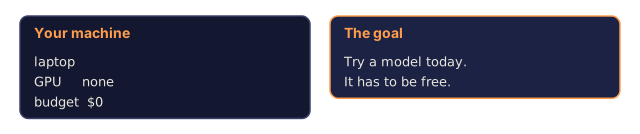
Colab is a free Jupyter notebook in the cloud, complete with a GPU, pre-installed libraries, Google Drive integration, and no setup.
- Go to colab.research.google.com
- Upload any
.ipynbfile from this course - Runtime > Change runtime type > T4 GPU (free)
Differences from local Jupyter: files don't persist between sessions (save to Drive or download); numpy, pandas, matplotlib, torch, tensorflow, and sklearn come pre-installed; from google.colab import files uploads/downloads files; from google.colab import drive; drive.mount('/content/drive') gives persistent storage; free-tier sessions time out after 90 minutes of inactivity.
Step 12: Alternative editors
Cursor (cursor.com) is a VS Code fork with built-in AI code generation. Same extension ecosystem, same settings format. Everything in Steps 1-5 still applies, so just import the same settings.json and extensions.json.
Windsurf (windsurf.com) is another AI-first VS Code fork. Same story: same extensions, same settings, same Remote SSH support.
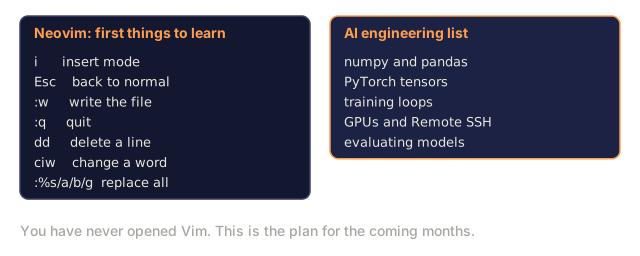
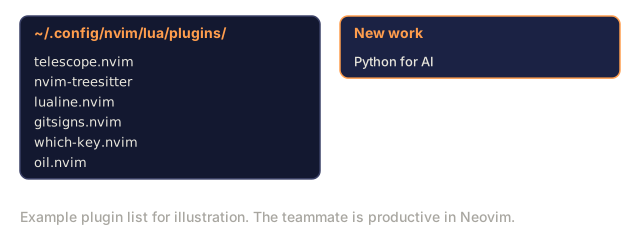
Vim/Neovim: if you're already productive here, stay. The minimum setup for AI Python work needs two kinds of plugins: a language server plugin (like nvim-lspconfig) for type checking and autocomplete, and a notebook-execution plugin (like molten-nvim) for running Jupyter cells inside Neovim. Neovim's own documentation and plugin registry stay more current than any fixed list here, so check those for what's actively maintained.
If you don't already use Vim, don't start now. The learning curve competes with learning AI engineering. Use VS Code.
![A four-line Python file defining fit(x: list[float], epochs: int) and calling it with the string ten, with a red dashed squiggle under the string and a Problems panel quoting the type error that pyright prints for it.](/quiz-visuals/00-setup-and-tooling/05-where-you-write-and-run-code/n5.svg)
Use It
With this setup, your daily workflow looks like:
- Open the project folder in VS Code (or connect via Remote SSH to a GPU box).
- Write Python with autocomplete, type hints, and inline errors doing the boring work for you.
- Run Jupyter notebooks inline with the Jupyter extension, or in JupyterLab if you want a dedicated tab.
- Use the integrated terminal for training scripts,
uv pip install, and GPU monitoring. - Review changes with GitLens before committing.
Notebooks vs. scripts: when to use which
| Use notebooks for | Use scripts for |
|---|---|
| Exploring a dataset | Training pipelines |
| Prototyping a model | Reusable utilities |
| Visualizing results | Anything with if __name__ |
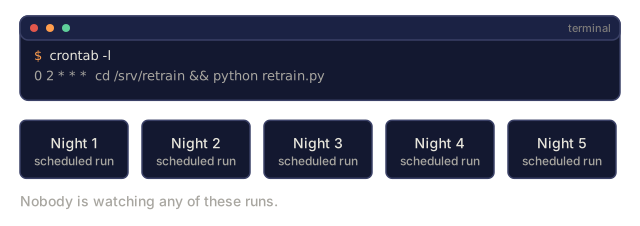
| Explaining your work | Code that runs on a schedule |
| Quick experiments | Production code |
| Course exercises | Packages and libraries |
The rule: explore in notebooks, ship in scripts. A common workflow: explore data in a notebook, prototype the model in the notebook, once it works move the code to .py files, then import those .py files back into the notebook for further experiments.
Common notebook traps
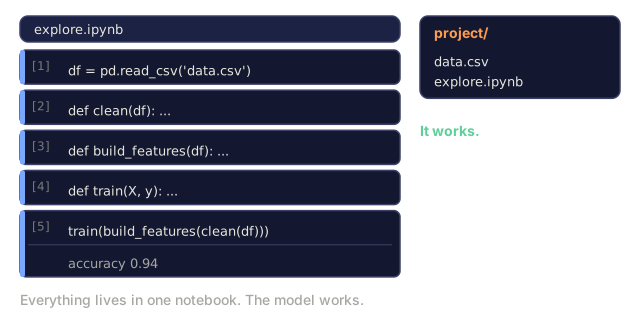
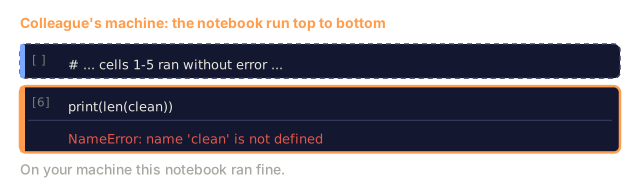
Out-of-order execution. You run cell 5, then cell 2, then cell 7. The notebook works on your machine but breaks the moment someone runs it top to bottom. Fix: Kernel > Restart & Run All before sharing anything.
Hidden state. You delete a cell but the variable it created is still sitting in memory. The notebook looks clean but depends on a ghost cell that no longer exists. Fix: restart the kernel regularly, not just when something breaks.
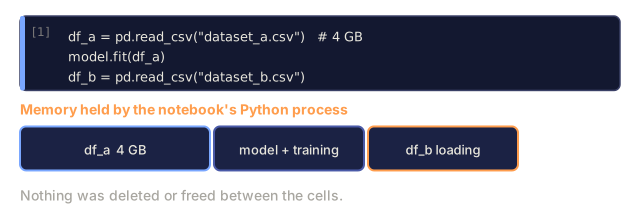
Memory leaks. Load a 4GB dataset, train a model, load another dataset, and nothing gets freed. Fix: del variable_name and gc.collect(), or just restart the kernel.
![A notebook with a code cell importing numpy, a dashed ghost outline of a deleted cell that held scores = [90, 92, 91], and a later cell sum(scores) / len(scores) that outputs 91.0.](/quiz-visuals/00-setup-and-tooling/05-where-you-write-and-run-code/post-4.svg)
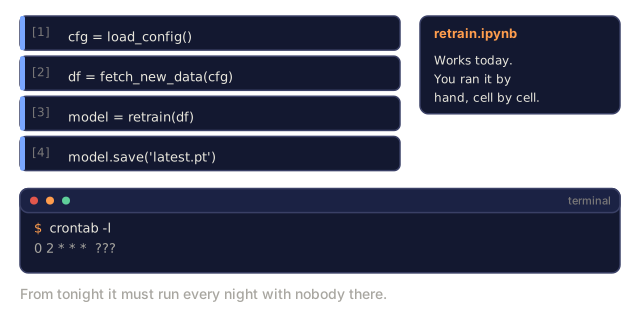
The editor/notebook split maps onto a distinction that matters more than the tools themselves: is this code allowed to fail silently, or not? A notebook cell can leave a stale variable in memory and nobody gets hurt, because you're the only one running it, right now, and you'll notice when the numbers look wrong. A script that ships to production doesn't get that grace. It runs unattended, at 3am, on someone else's machine, and "it worked when I ran it out of order" is not a debugging strategy anyone should have to use.
So the actual skill here isn't picking VS Code over Cursor or JupyterLab over Colab — pick whichever, they all read the same files. The skill is noticing, cell by cell, which mode you're actually in. If you're not sure whether what you're writing needs to survive Restart & Run All, that's usually the moment to find out before you've built three more cells on top of it.
Exercises
- Install VS Code and every extension from Step 2; confirm Pylance shows type hints and Black formats on save.
- Copy
code/vscode/settings.jsonfrom this lesson into your VS Code config and verifynotebook.output.scrollingis on. - Open JupyterLab (or the Jupyter extension in VS Code) and use
%timeitto compare list comprehension vs. numpy for building an array of 100,000 random numbers. - Build a notebook with both markdown and code cells that loads a CSV, displays a dataframe, and plots a chart, then run
Kernel > Restart & Run Allto confirm it survives top-to-bottom execution. - Take
code/notebook_tips.pyfrom this lesson, paste it into a Colab notebook, and run it on a free GPU. - If you have access to a remote machine, set up Remote SSH and open a folder on it.
Key Terms
| Term | What people say | What it actually means |
|---|---|---|
| Kernel | "The thing running my code" | A separate Python process that executes cells and keeps variables in memory |
| Cell | "A code block" | An independently runnable unit in a notebook, either code or markdown |
| Magic command | "Jupyter tricks" | Special commands prefixed with % or %% that control the notebook environment |
.ipynb | "Notebook file" | A JSON file containing cells, outputs, and metadata. Stands for IPython Notebook |
| LSP | "Autocomplete engine" | Language Server Protocol: a standard for editors to get type info, completions, and diagnostics from a language-specific server |
| Pylance | "The Python plugin" | Microsoft's Python language server using Pyright for type checking and IntelliSense |
| Remote SSH | "Working on the server" | VS Code extension that runs a lightweight server on a remote machine and streams the UI to your local editor |
| Format on save | "Auto-prettier" | The editor runs a formatter (Black, Ruff) every time you save, so code style is always consistent |
Further Reading
- JupyterLab Docs for the full feature set
- Google Colab FAQ for Colab-specific limits and features
- 28 Jupyter Notebook Tips for power-user shortcuts
Code
- notebook_tips.py (python, 114 lines)
- vscode/extensions.json (json, 18 lines)
- vscode/settings.json (json, 61 lines)